

English
Configuration Steps
The following capabilities are currently in beta and require beta access approval.
I. [Redirect to PWC Page After Creating New Field Plan]
1. Usage Scenario
After beta approval, a custom function named checkinPlanCreatedPwc__c will be created in the enterprise. This function will be invoked upon plan creation completion. (If not automatically created, manually create a function with the same name, selecting the Field Plan PWC namespace.)
2. Function
Develop your logic within this function. Current parameters are listed below. The function returns a UIAction, allowing custom redirect configurations.
{
    "checkTypeId": "default_check_type_id", // Field check type ID
    "planTime": 1731643220000, // Scheduled time (timestamp)
    "executorId": 1000, // Executor user ID
    "assistantIds": [6], // Assistant user IDs
    "mainObjList": [ // Primary objects
        {
            "dataId": "6723715e64ac370001904dff", // Object data ID
            "apiName": "AccountObj", // Object API name
            "name": "Test Customer", // Data name
            "info": "116.331953#%$39.977195#%$Beijing Haidian District Zhichun Road A63 (310m NE of Zhichunli Metro Station B Exit) Satellite Building", // Address info
            "recordType": "default__c", // Business type
            "recordTypeName": "Default Business Type", // Business type name
            "objName": "Customer" // Object name
        }
    ],
    "referenceObject": [], // Child objects
    "extFields": {}, // Extended fields from check type
    "remark": "",
    "planRepeater": {},
    "checkinIds": ["6736c4ed11a1d924c5a5e27b"],
    "checkinId": "6736c4ed11a1d924c5a5e27b", // Newly created field plan ID (single plan creation)
    "requestSource": "WEB" // Request source (WEB indicates web page)
}
II. [Display PWC Button After Selecting Visit Objects in Field Plan]
1. Usage Scenario
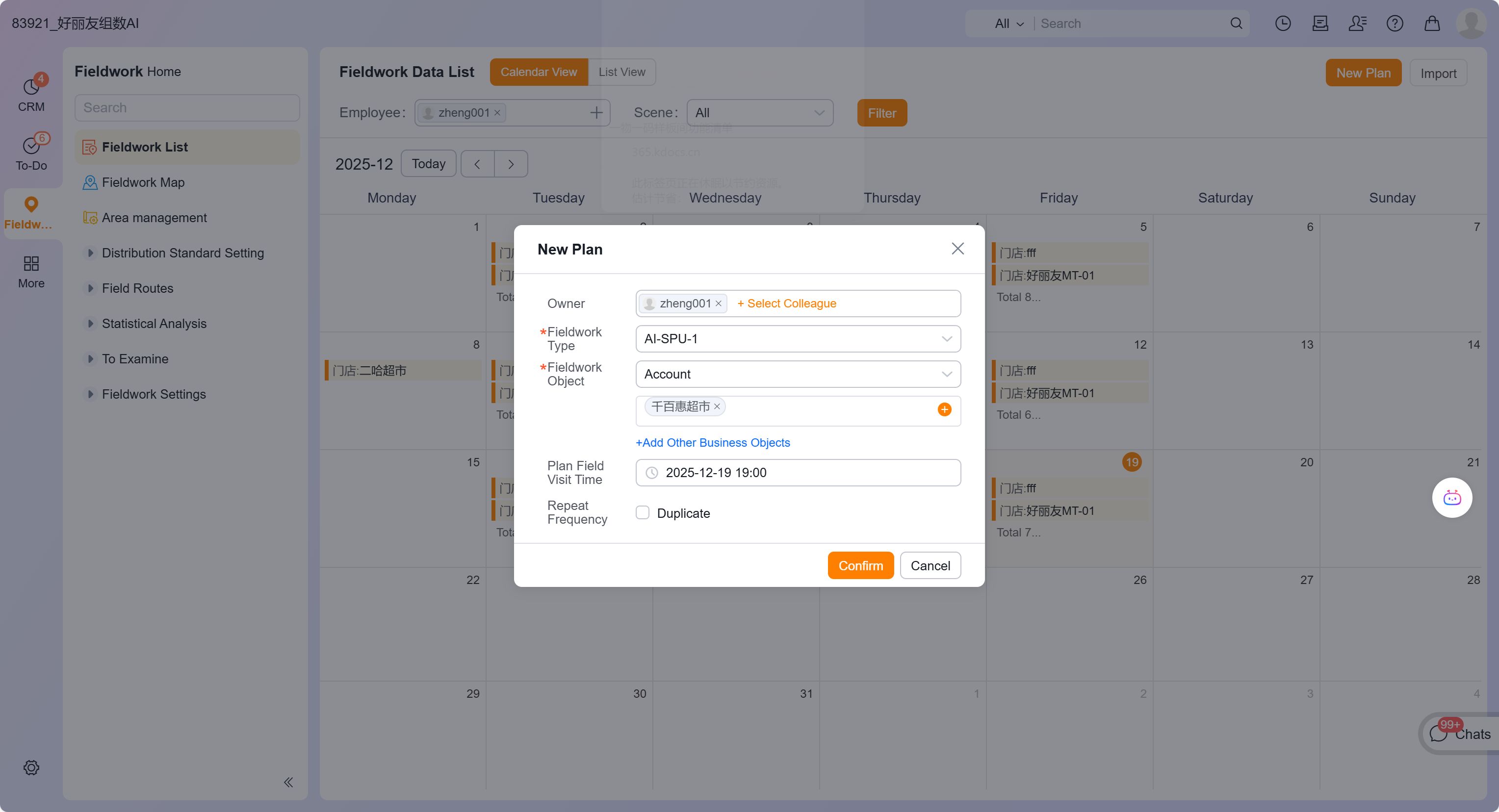
After beta approval, a custom function named checkinPlanMainPwc__c will be created. This function will display a button after primary object selection, which triggers the function when clicked. (Manually create if not auto-generated, using Field Plan PWC namespace.)
Button appearance (button text can be modified via translation workspace under Advanced Field category > Field Plan subcategory):
2. Function
Develop your logic within this function. Current parameters are listed below. The function returns a UIAction for custom redirect configurations.
{
    "checkTypeId": "default_check_type_id", // Field check type ID
    "planTime": 1731643220000, // Scheduled time
    "executorId": 1000, // Executor user ID
    "assistantIds": [6], // Assistant user IDs
    "mainObjList": [ // Selected primary objects
        {
            "dataId": "6723715e64ac370001904dff", // Object data ID
            "apiName": "AccountObj", // Object API name
            "name": "Test Customer", // Data name
            "info": "116.331953#%$39.977195#%$Beijing Haidian District Zhichun Road A63 (310m NE of Zhichunli Metro Station B Exit) Satellite Building", // Address info
            "recordType": "default__c", // Business type
            "recordTypeName": "Default Business Type", // Business type name
            "objName": "Customer" // Object name
        }
    ],
    "referenceObject": [], // Child objects
    "extFields": {}, // Extended fields from check type
    "remark": "",
    "planRepeater": {},
    "requestSource": "WEB" // Request source
}
3. Function Example
Simple example: (This implementation redirects to the list page of new_plan_pwc__c custom object with filter conditions based on selected primary object names.)
-- See Groovy code example for details