

English
APL Editor and Function Management
APL Editor
In the function editor, you can add function scripts to implement logic.
- Quick Insert: Quickly insert code snippets into the function editing area
- Maximize Editor: Expand the function editor window to full screen
- Set Parameters:
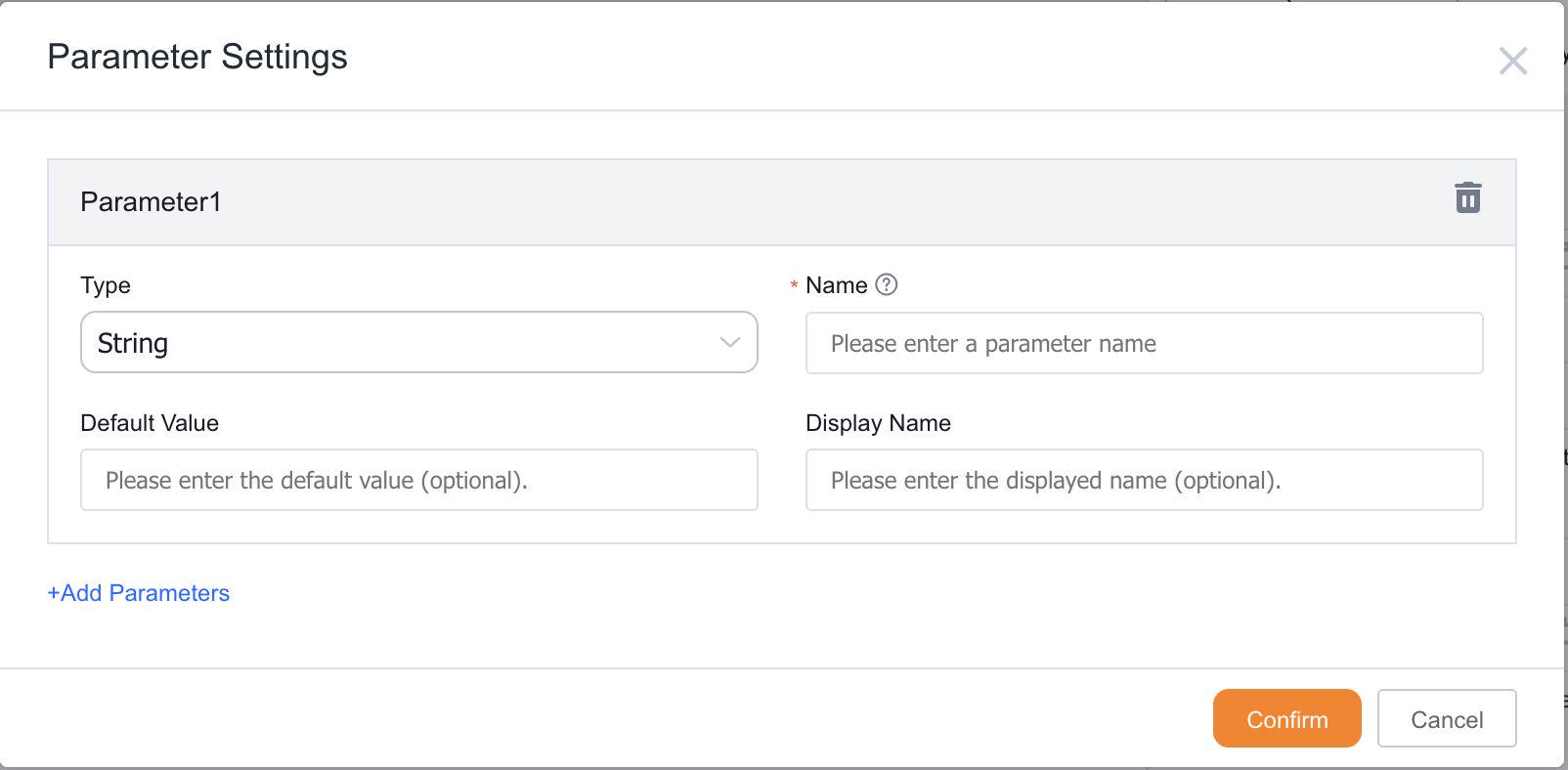
| Parameter | Description |
|---|---|
| Type (Required) | The data type of the parameter (String, BigDecimal, Boolean, DateTime, Date, Time) |
| Name (Required) | The name of the parameter (must comply with naming conventions) |
| Default Value | The default value of the parameter |
| Display Name | The name displayed when binding parameters to the function |
- Function Editing Area: The workspace for writing function code
- Run Script: Outputs execution logs, including return values and error messages
- Select Data Source: Choose an instance data source from the associated objects when creating the function
- Scan Function: The system scans the code and provides optimization suggestions
- Get Code Template: View the function template library to quickly create code using examples
- View Object and Field API Names: Quickly copy and paste object and field API Names into the function editing area
Custom Function Management
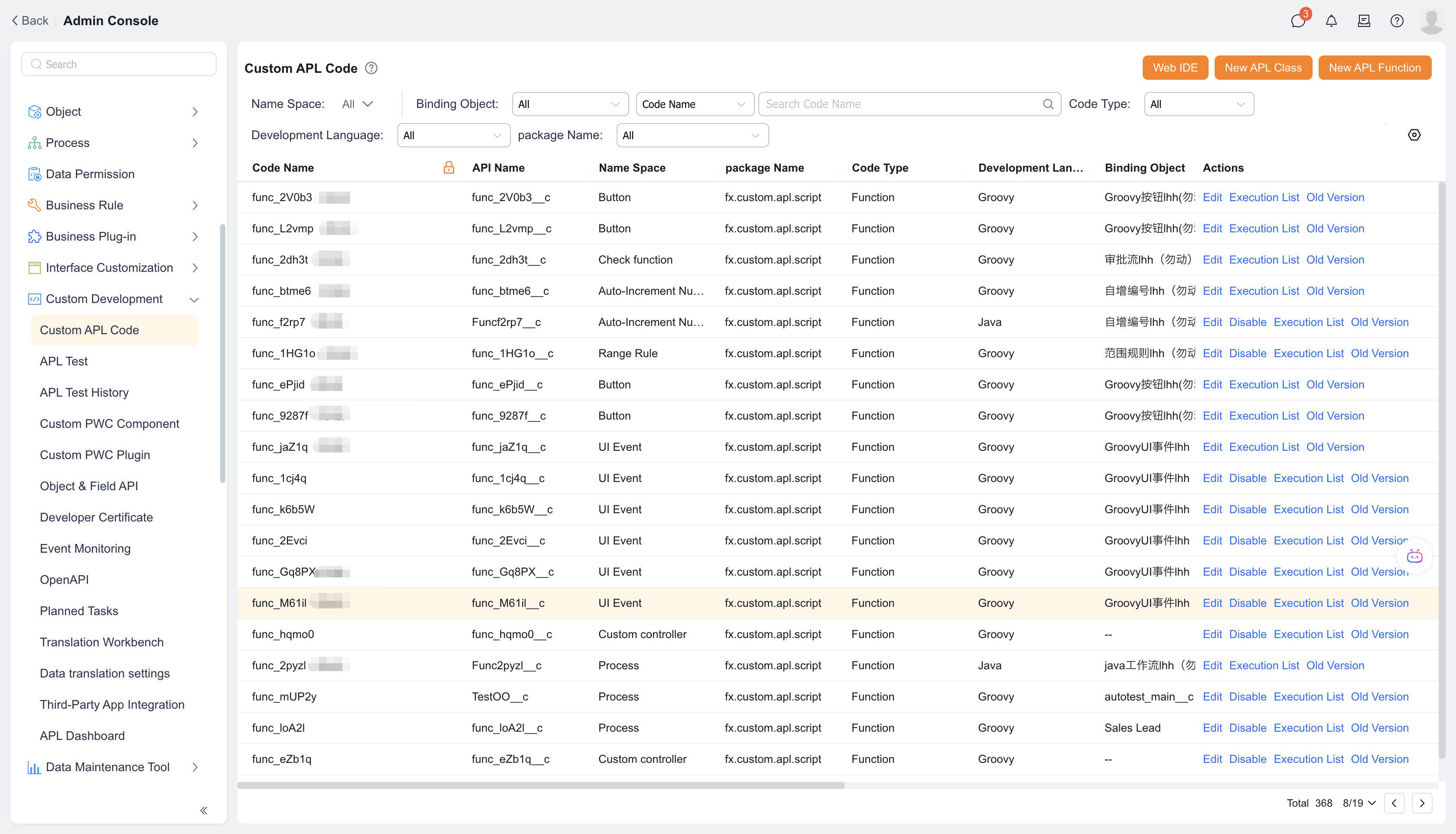
- View custom function details, including: function name, API Name, namespace, bound object, return type, creation time, caller, status, and available actions.
- Filter custom functions by namespace or bound object, or quickly search by function name.
- Create, edit, or disable custom functions. Disabled functions can be deleted.
- Used custom functions display their callers (buttons or workflows) and can only be edited or unlinked from the caller's interface.