

English
Configuration Steps
This feature is currently in beta testing. To experience it, you need to apply through the beta application process.
I. Action Prompt Text
1. Configuration Method
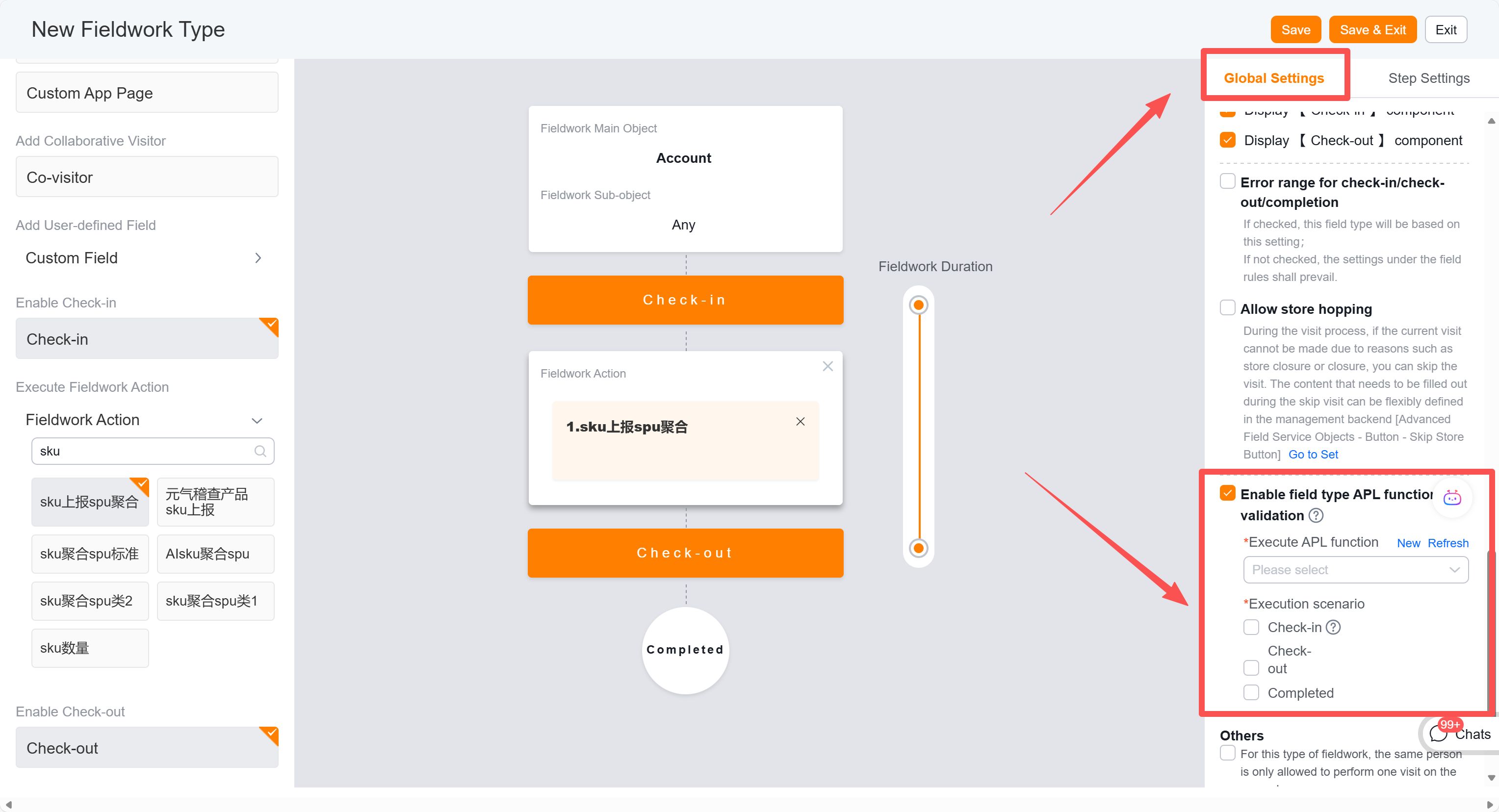
You can configure different text prompts for each action node in the class, executing different functions.
2. Parameter Description
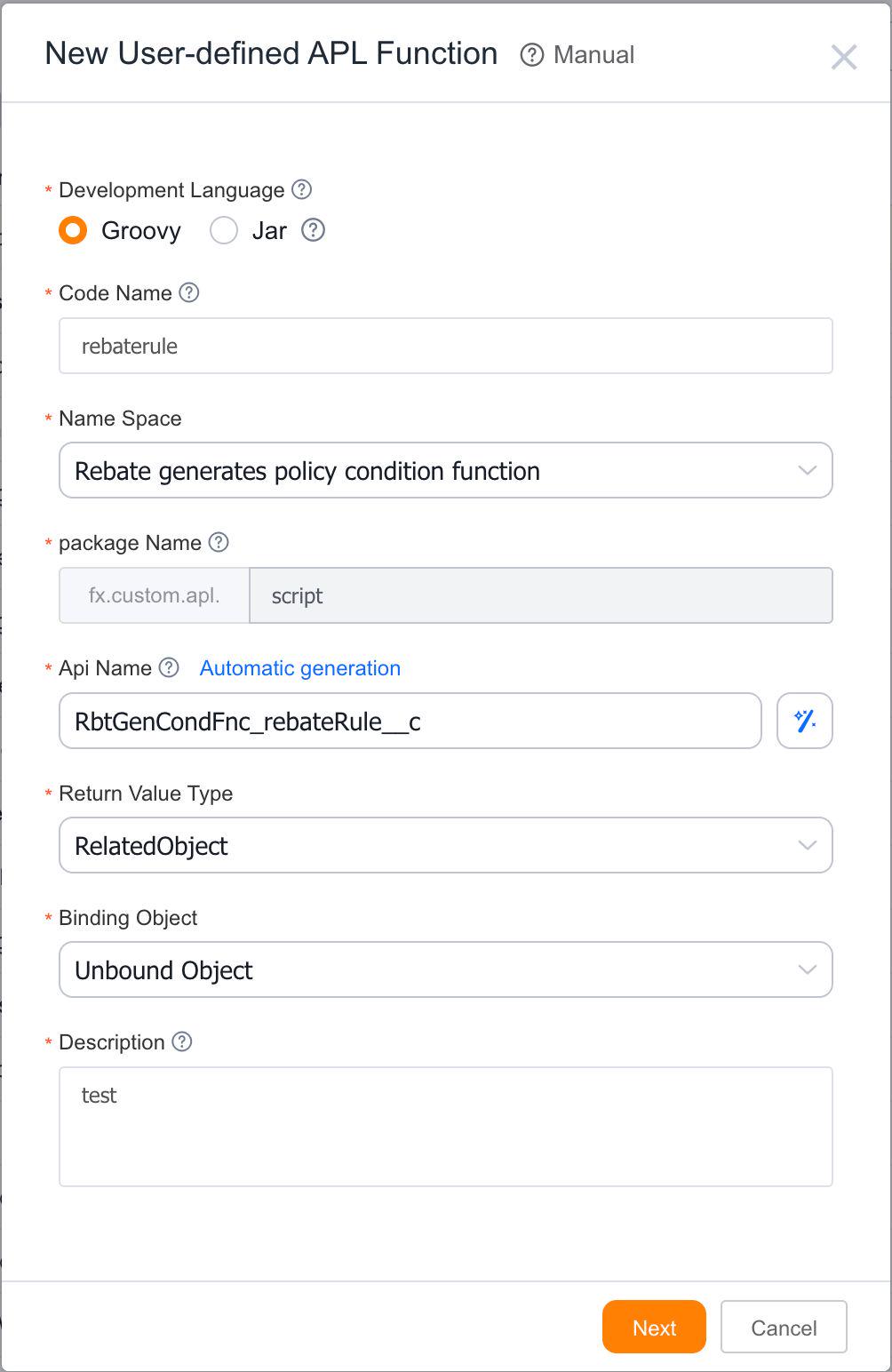
Create a new type directly or create a new APL function in the APL backend management. Select the namespace for the field action description text. The return value is a dictionary, and all required fields must be completed.
Select an empty template, then you must add a parameter in the settings.
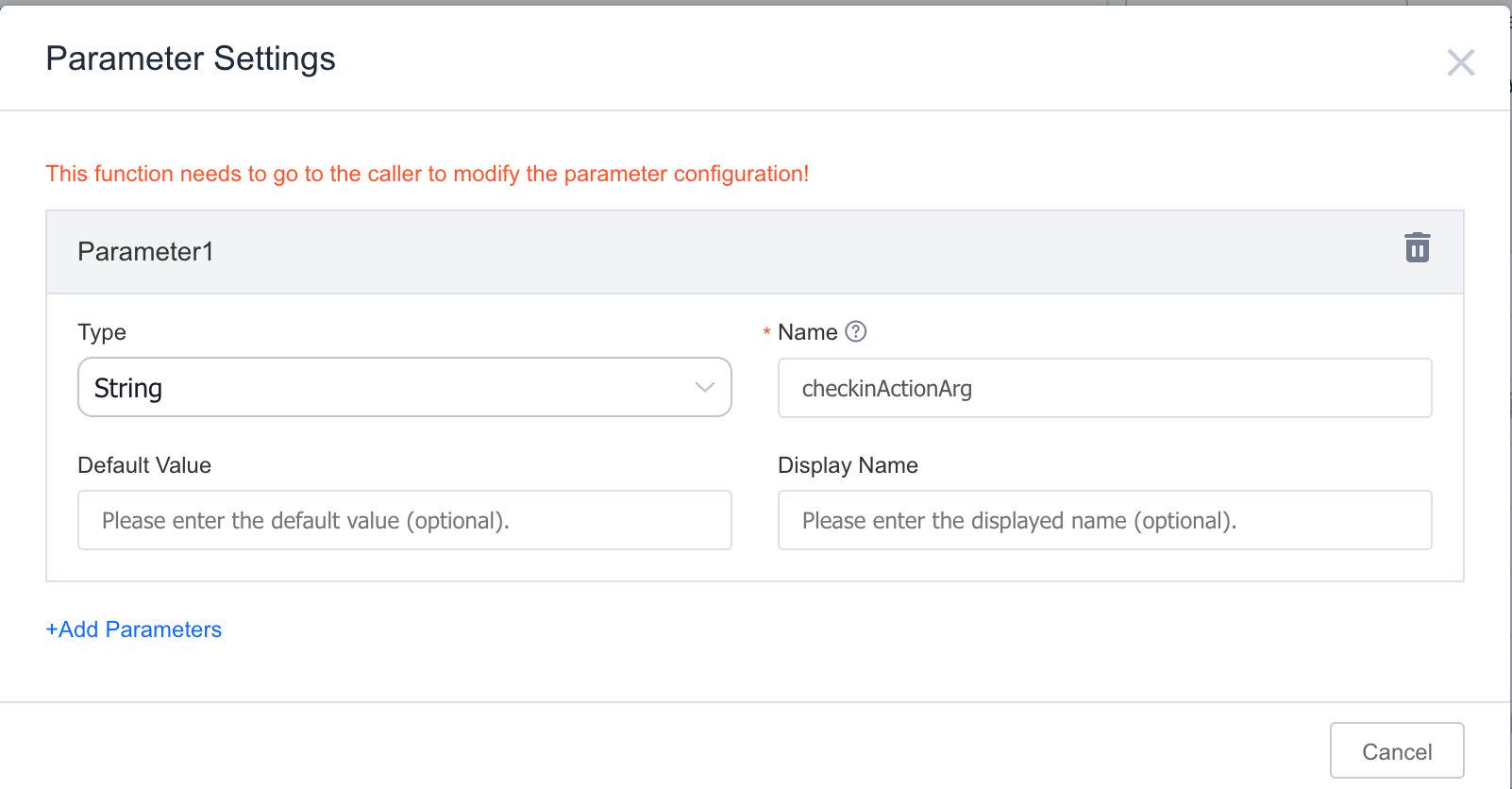
Parameter explanation:
//Parameter meanings
String checkId = checkinActionArg.checkId as String //ID of the advanced field visit object
String mainObjApiName = checkinActionArg.mainObjApiName as String //API name of the main object for advanced field visits (may be empty)
String mainObjDataId = checkinActionArg.mainObjDataId as String //Data ID of the main object for advanced field visits (may be empty)
String execute = checkinActionArg.executed as String //Two states: executed: "executed", not executed: "notExecuted"
String actionId = checkinActionArg.actionId as String //Used to handle different action judgments (not needed if the function only applies to one action)
String checkTypeId = checkinActionArg.checkTypeId as String //Field visit type ID (used when this function applies to different types; not needed if only for one type)
String remake = checkinActionArg.remake as String //Field added after AI remake in beta, default is no remake: "noRemake", remake: "remake"
String relationApiName = checkinActionArg.relationApiName as String //Only returned for custom object actions - corresponding object API name
String relationDataId = checkinActionArg.relationDataId as String //Only returned for custom object actions - corresponding data ID
The return result is a map, which must contain two values:
    //context: corresponding text
    //color: text color
    Map result = [:]
    result.put("context", "This is the prompt text")
    result.put("color", "0000FF")
    return result
3. Simple Example
-- See Groovy code example for details