

English
Configuration Steps
Adding a Custom Business Handler for the [New] Button
Navigate to the backend object button list and locate the [Save New] button. If this button doesn't exist, find the [New] button instead.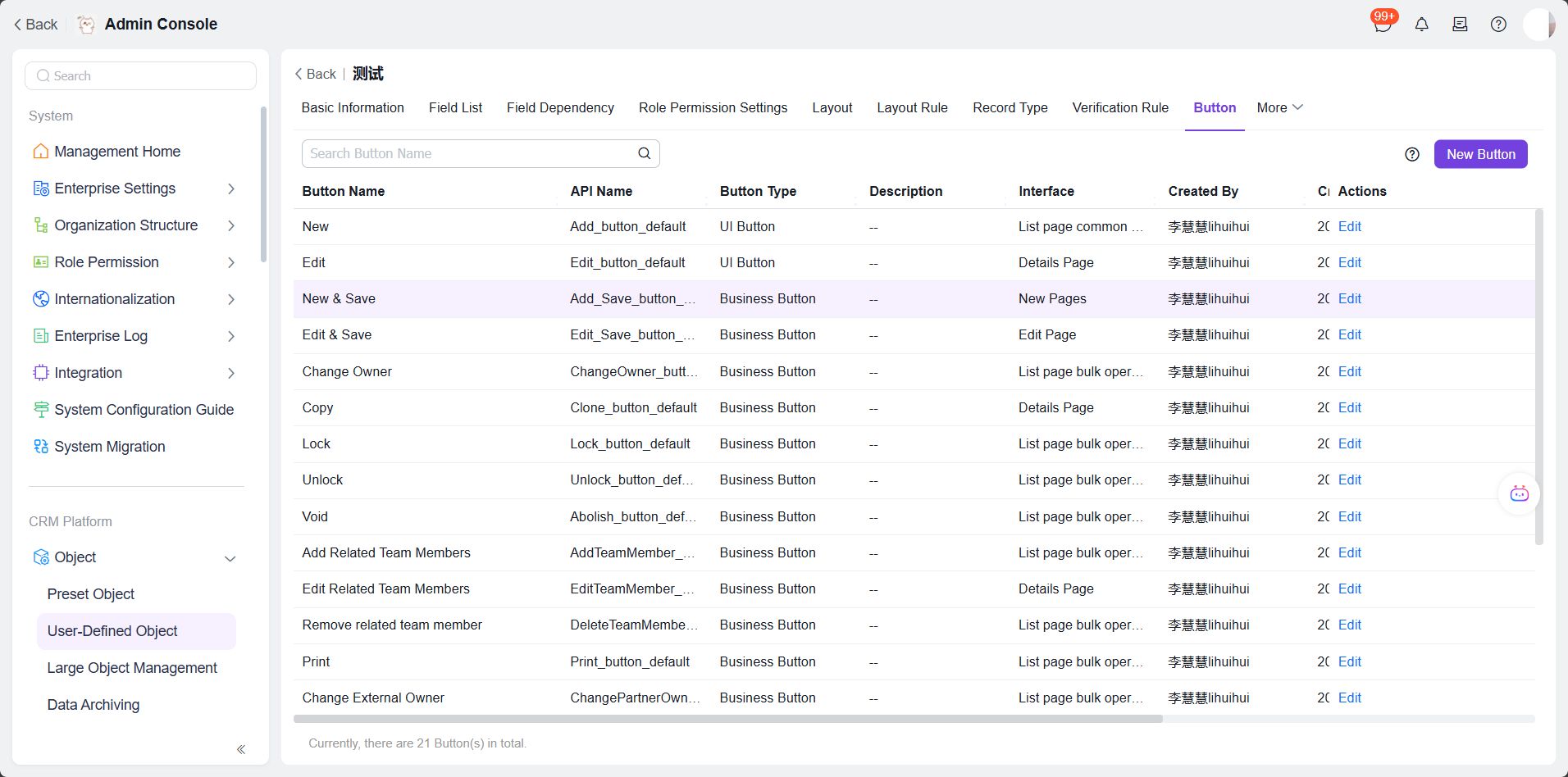
Click the edit button in the last column of the table to enter the edit page. Switch to the [Special] tab under the 5th configuration item [Actions triggered when user clicks the button].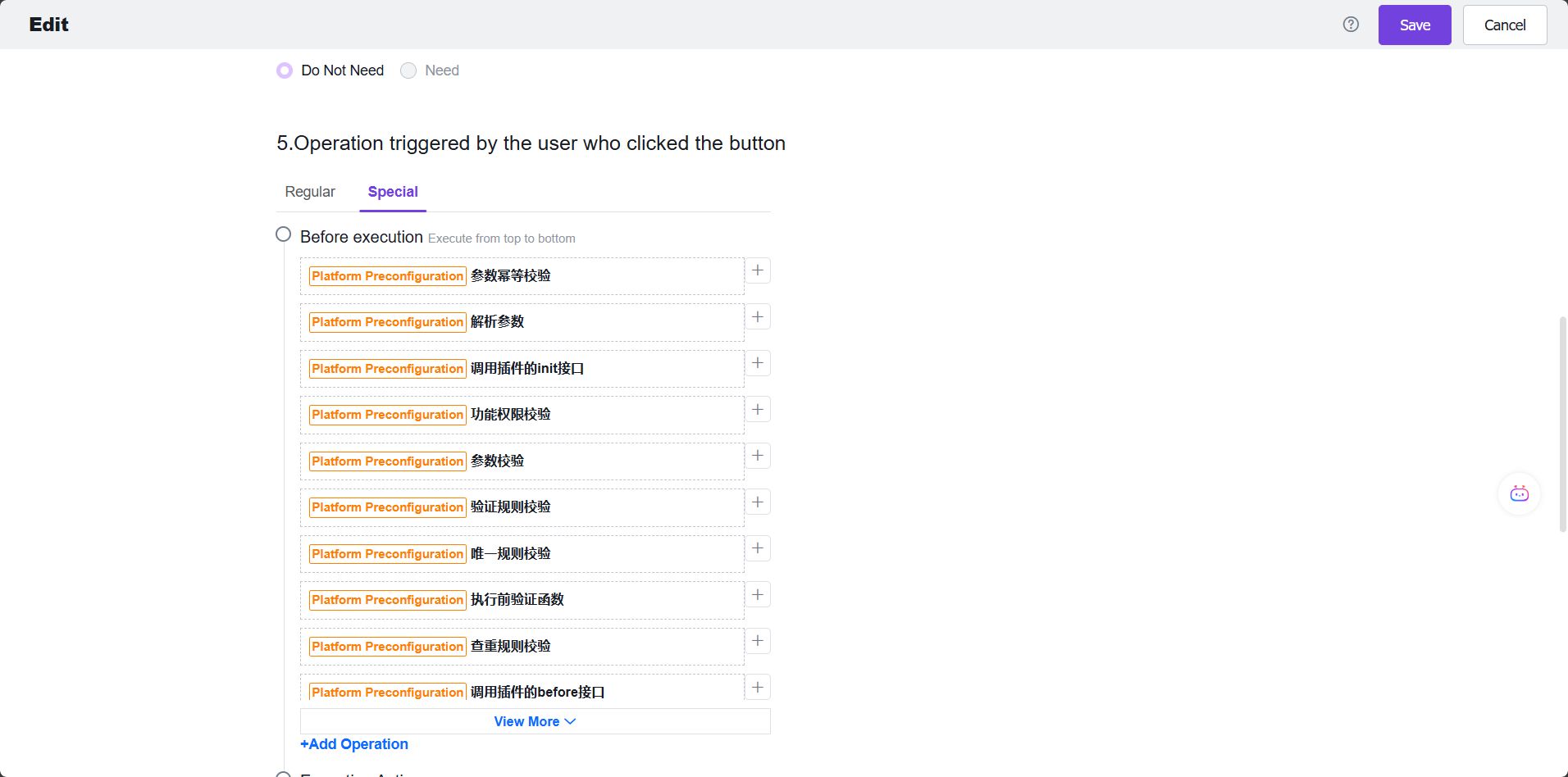
Click the [+] button next to the platform's preset business operations to enter the function selection page.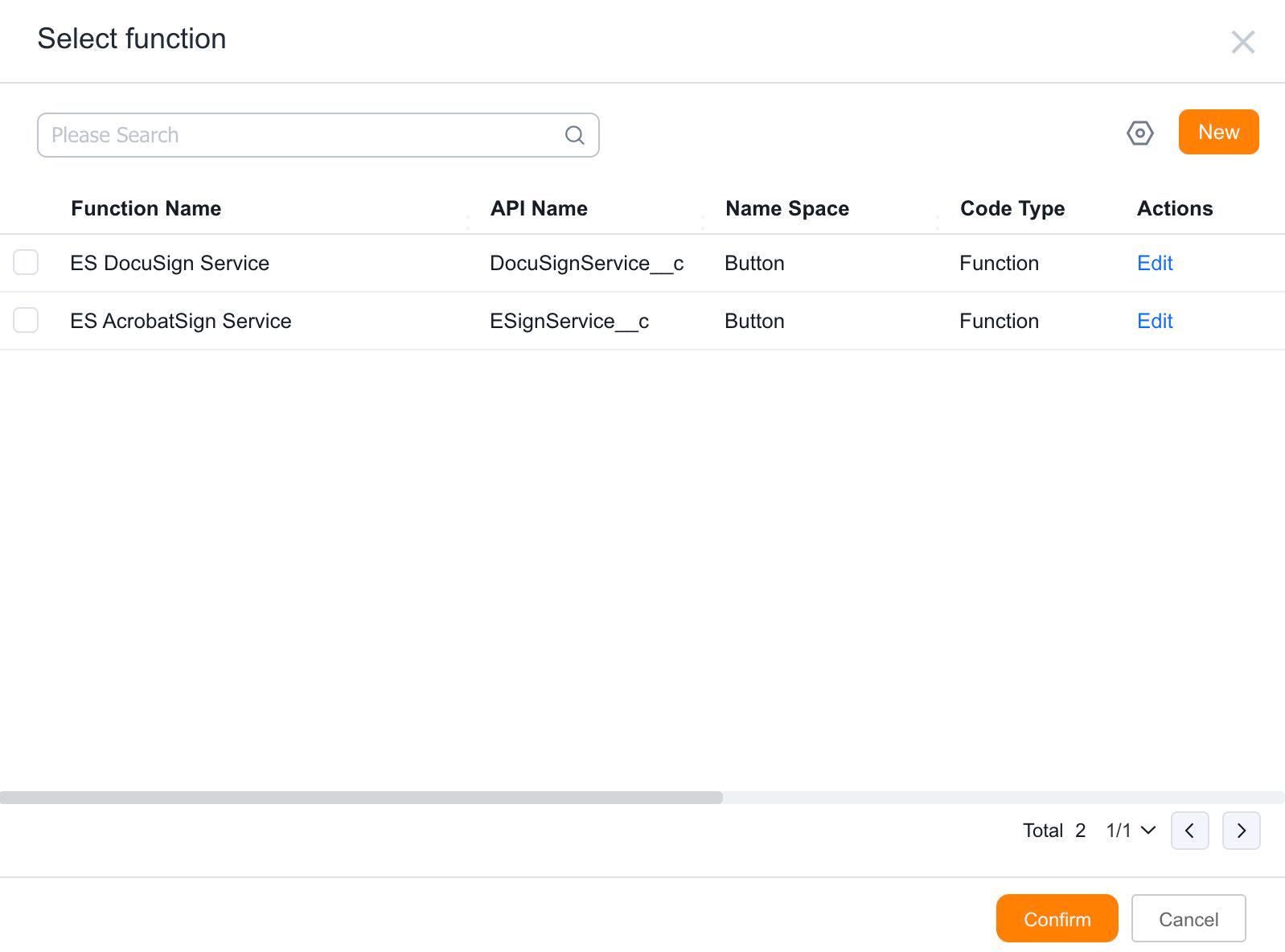
Select a function and click [Confirm] to return to the edit page. Alternatively, click [New] to enter the function creation page.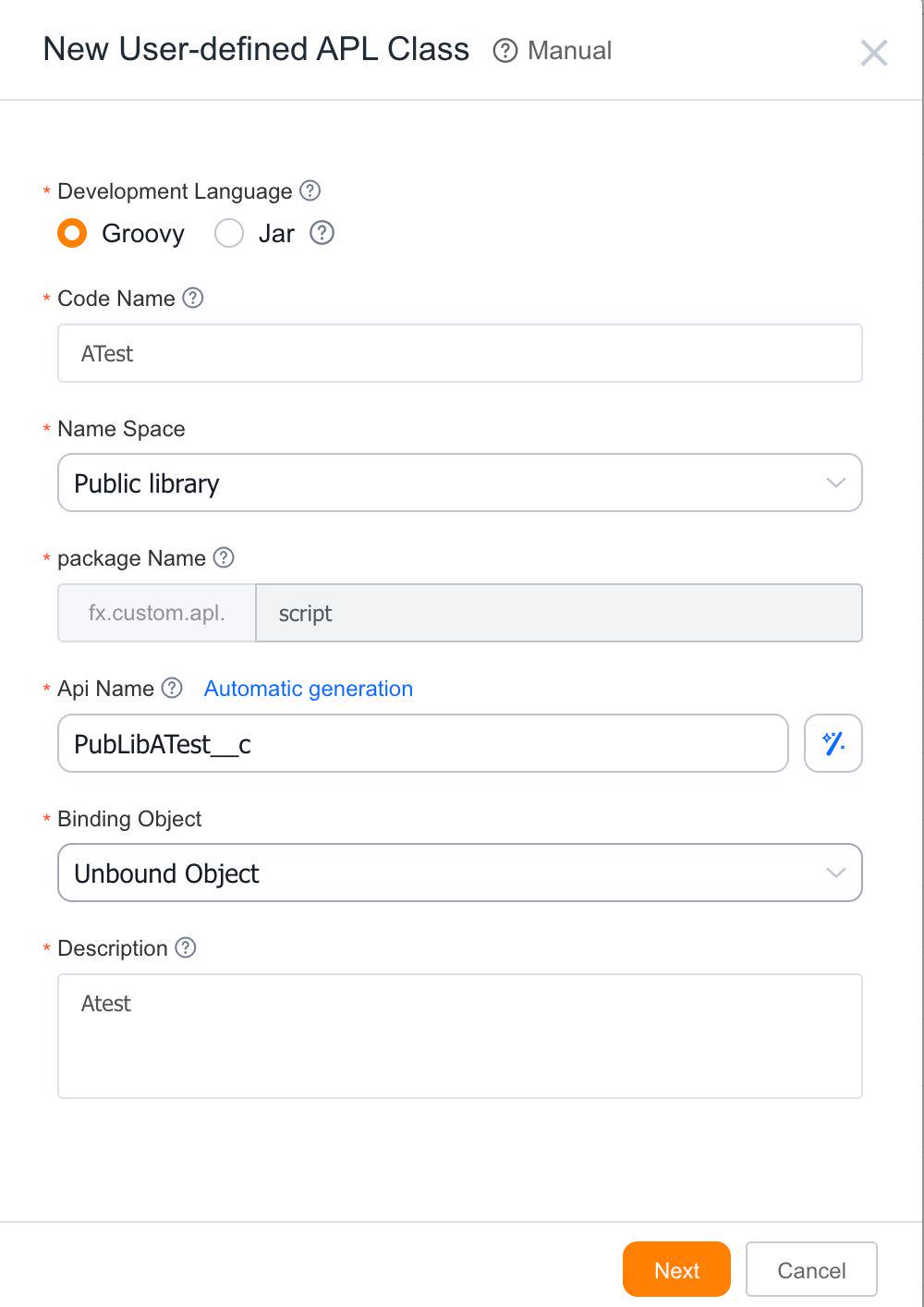
Enter the code name, code API Name, and code description, then click [Next] to proceed to the function template selection page.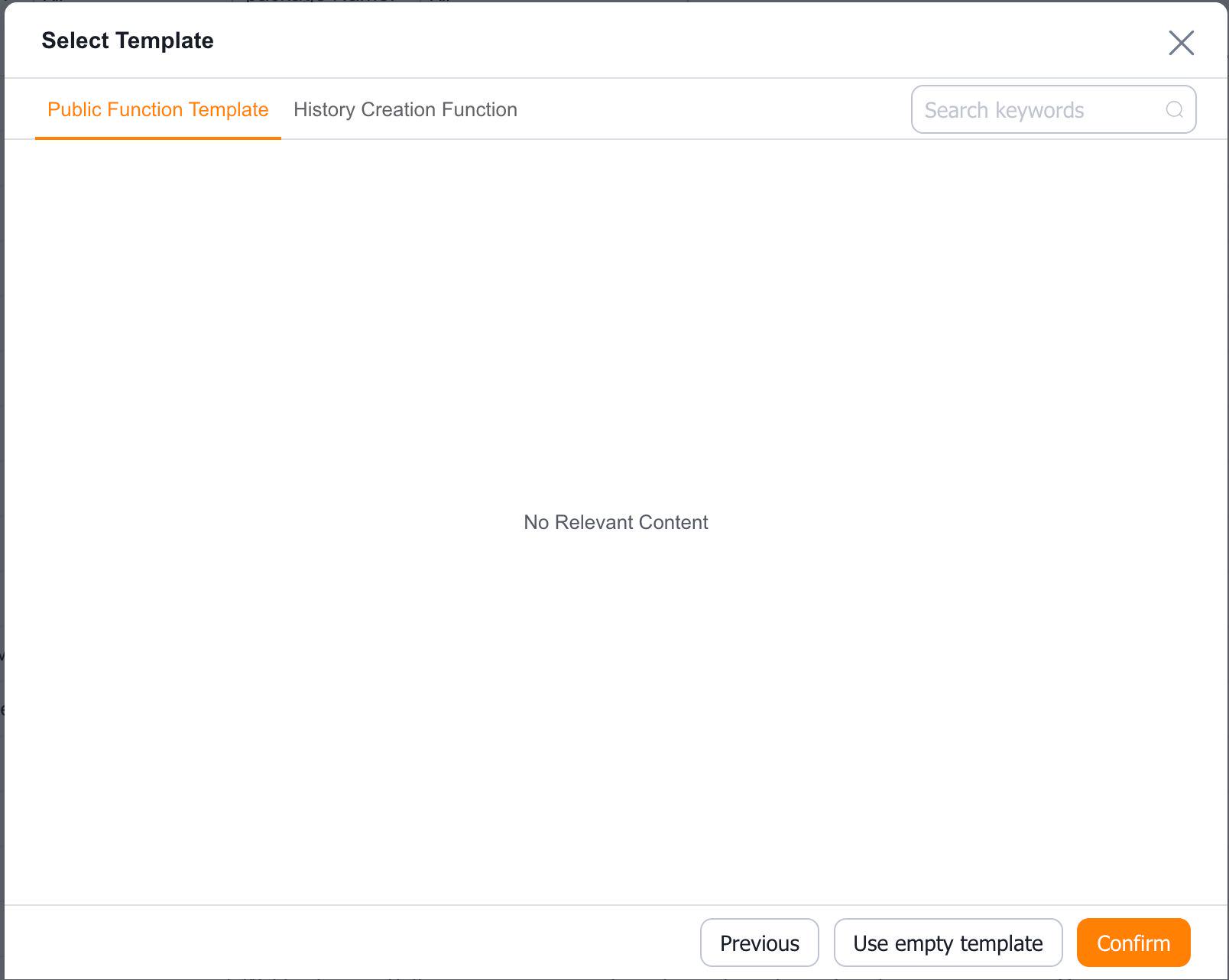
Select the empty template and click [OK] to enter the function code editing page.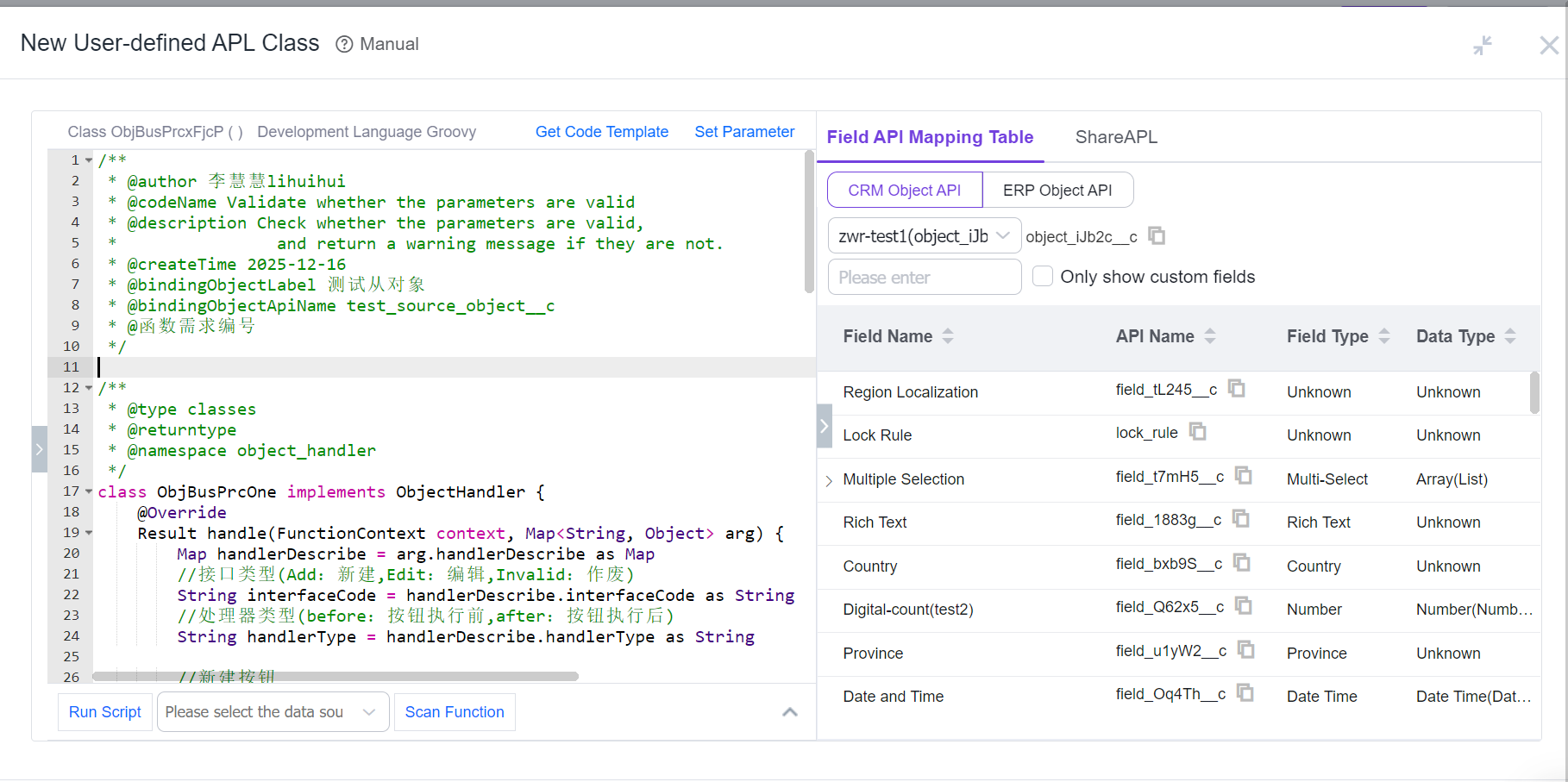
Modify the function code to implement your business logic. Click [Save], enter remarks in the pop-up dialog, then click [OK and Close] to return to the button edit page where you can see the custom business handler has been successfully added.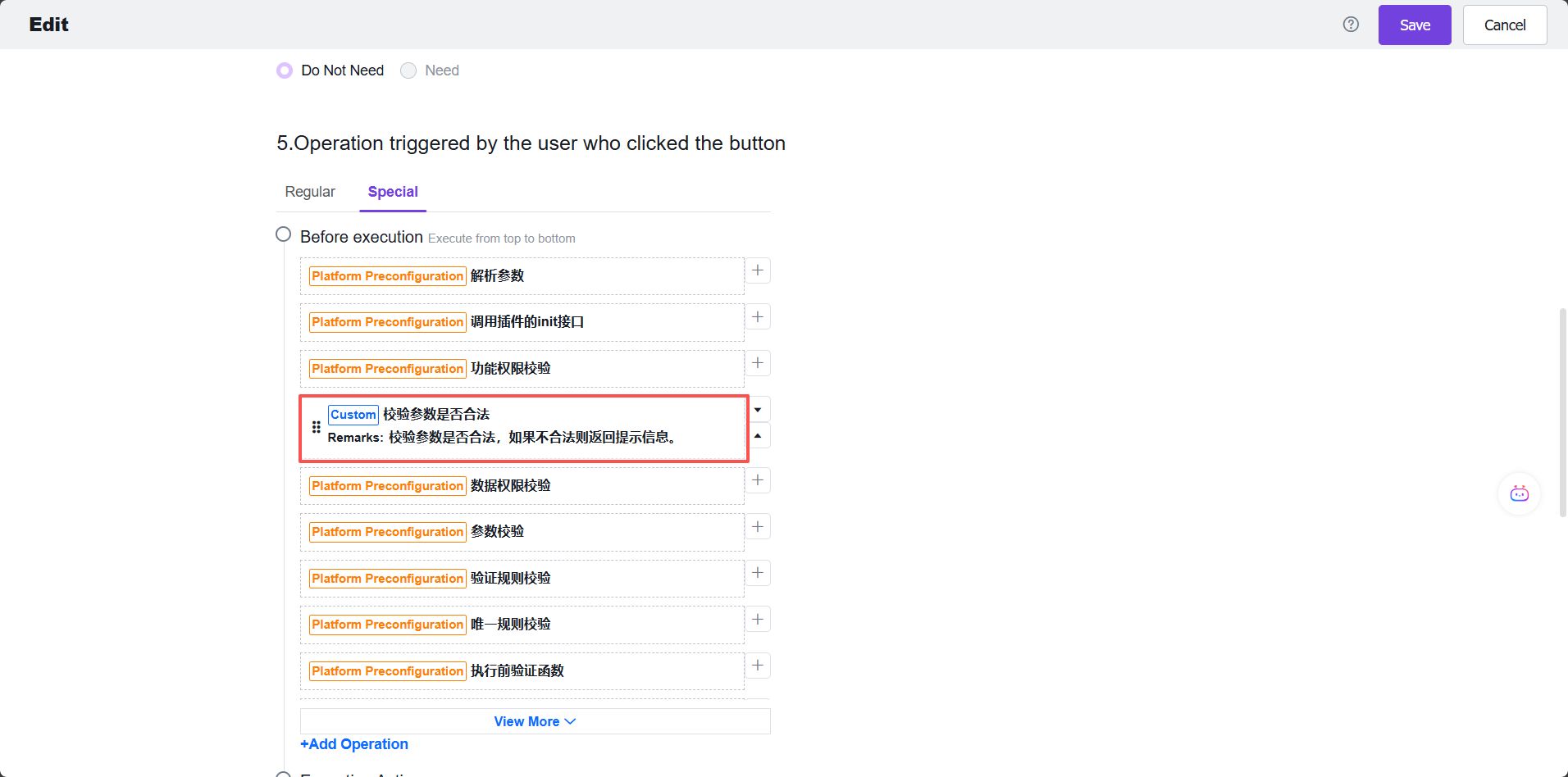
Click [Save] to return to the button list page, completing the process of adding a custom business handler for the [New] button.
Adding a Custom Business Handler for the [Edit] Button
Navigate to the backend object button list and locate the [Save Edit] button. If this button doesn't exist, find the [Edit] button instead.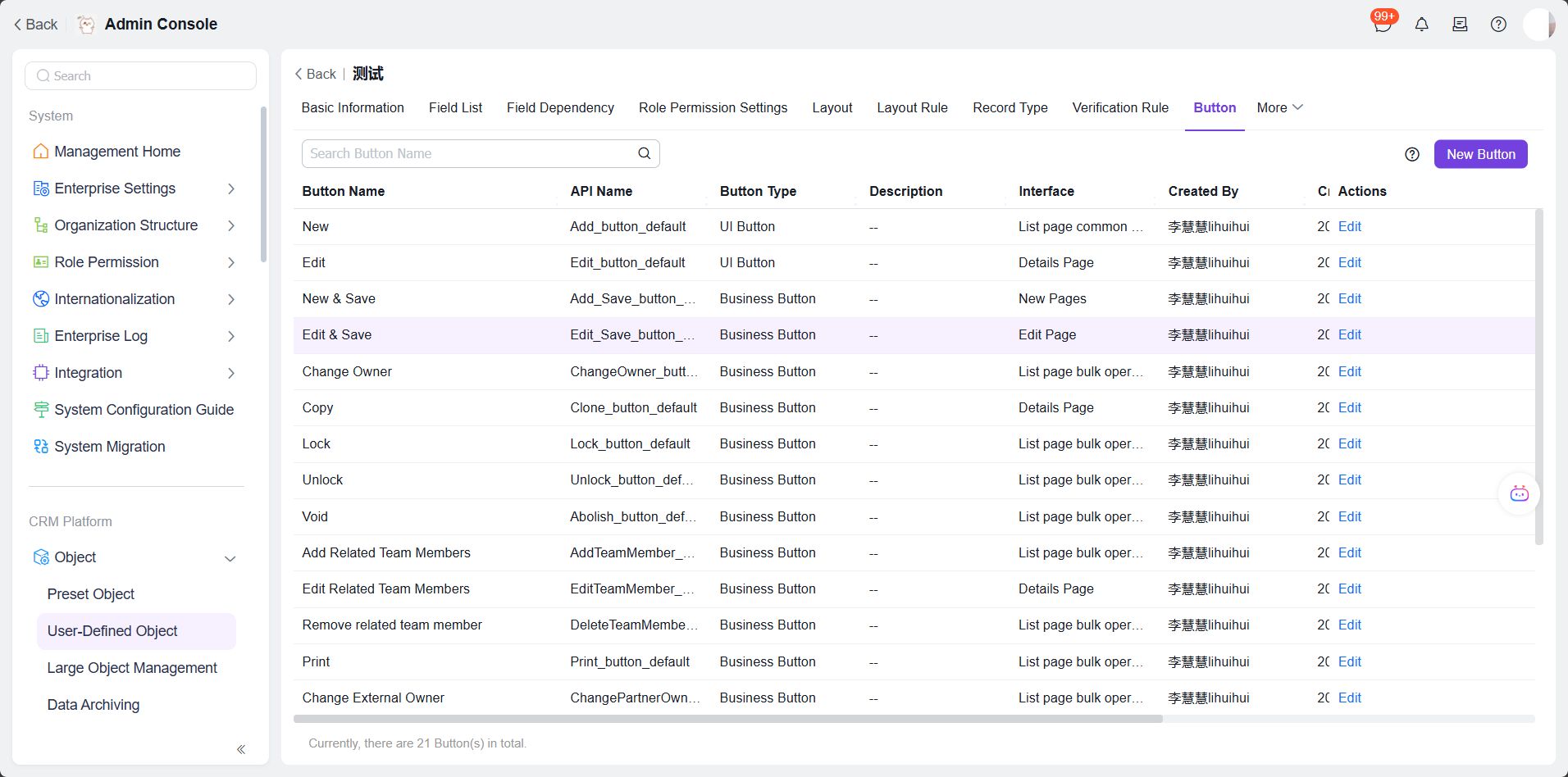
Click the edit button in the last column of the table to enter the edit page. Switch to the [Special] tab under the 5th configuration item [Actions triggered when user clicks the button].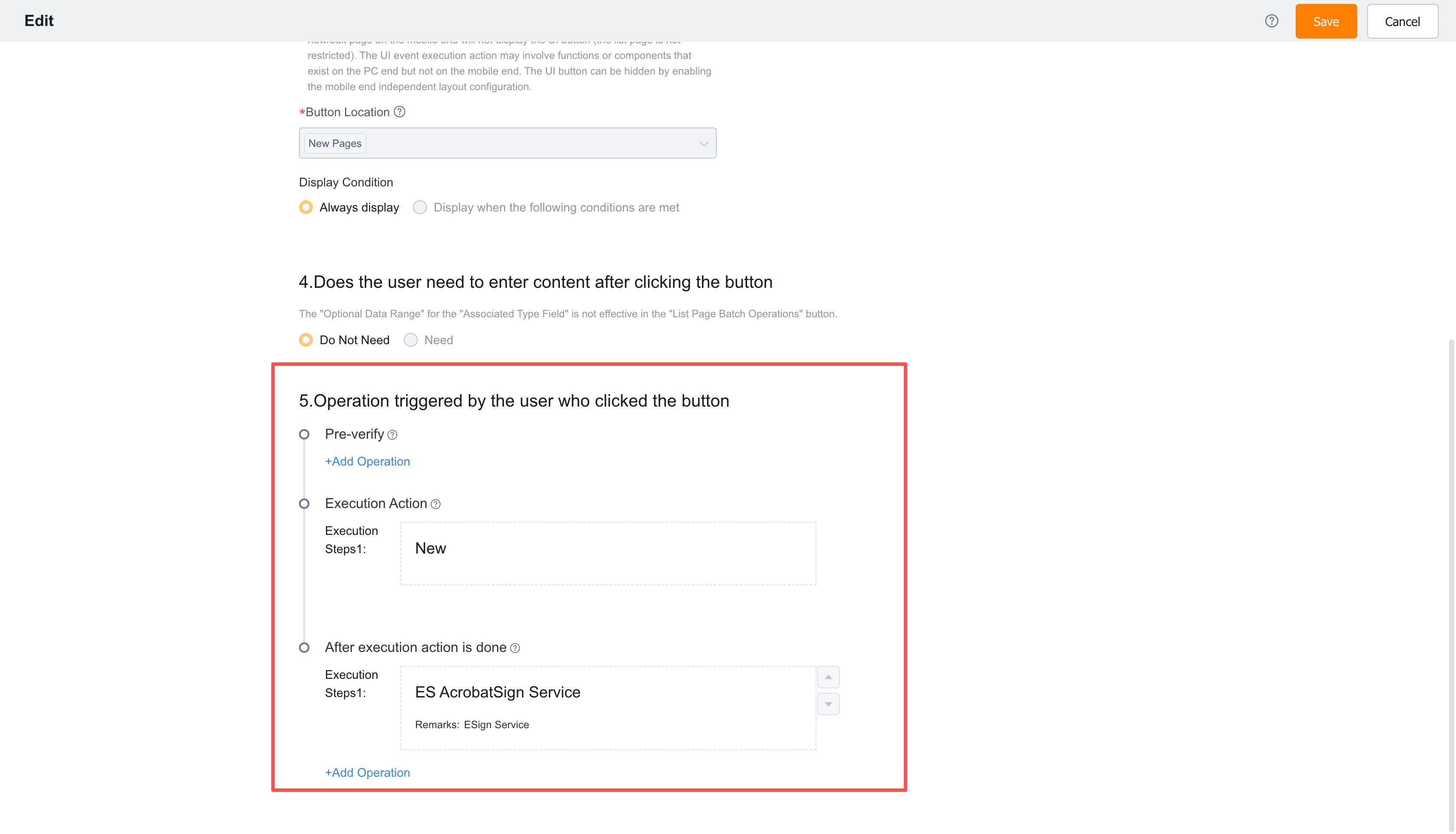
Click the [+] button next to the platform's preset business operations to enter the function selection page.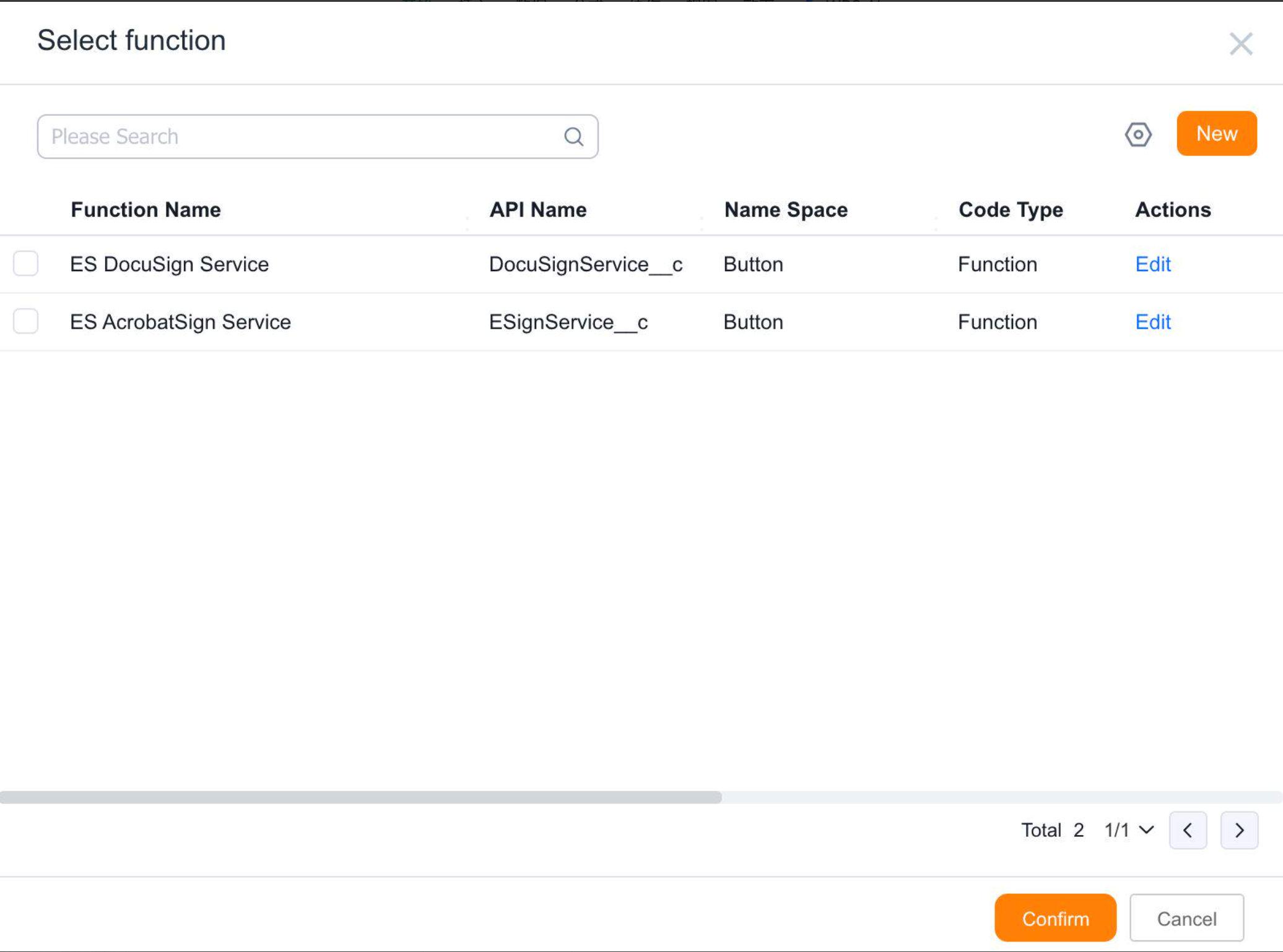
Select a function and click [Confirm] to return to the edit page. Alternatively, click [New] to enter the function creation page.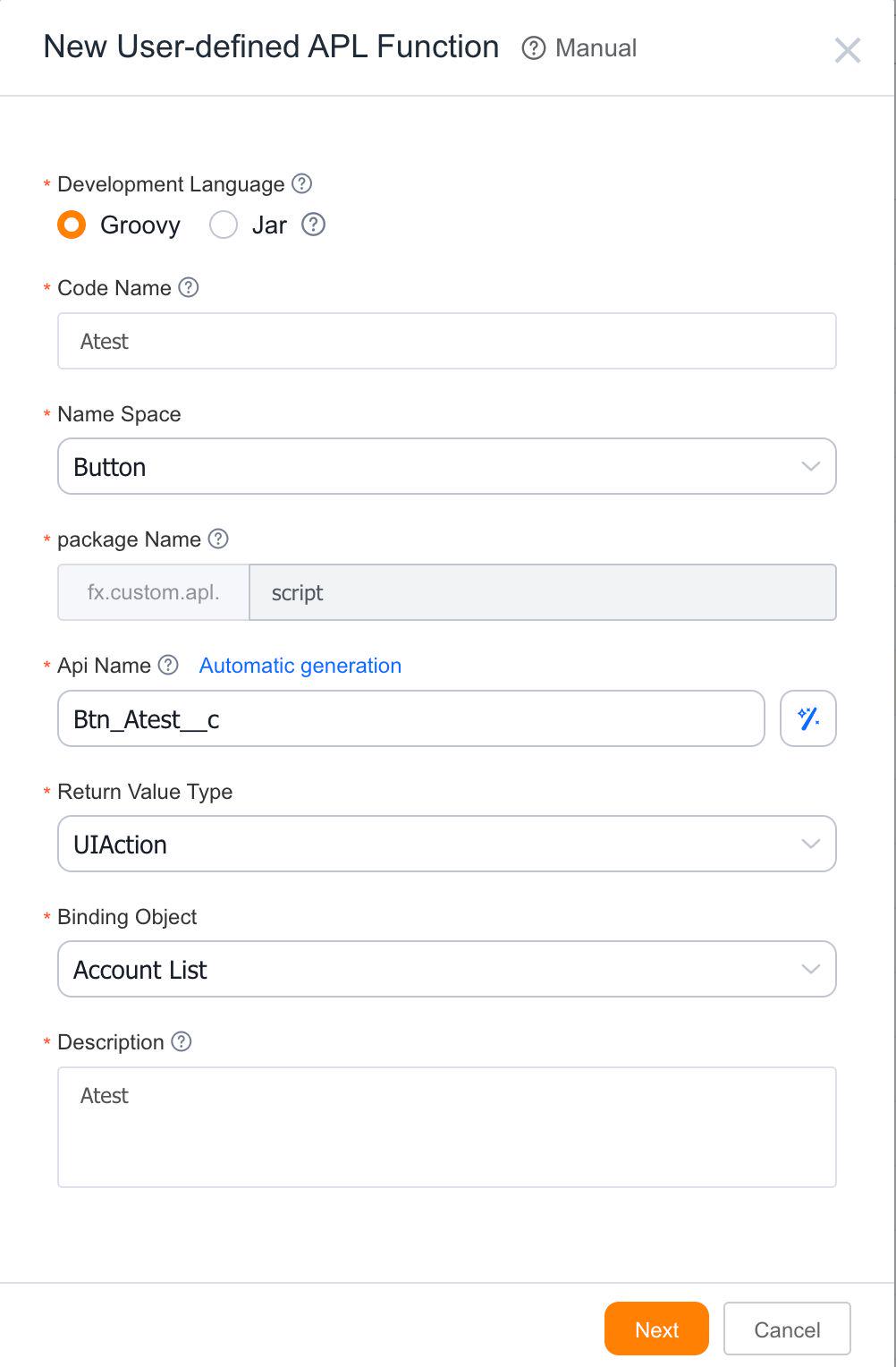
Enter the code name, code API Name, and code description, then click [Next] to proceed to the function template selection page.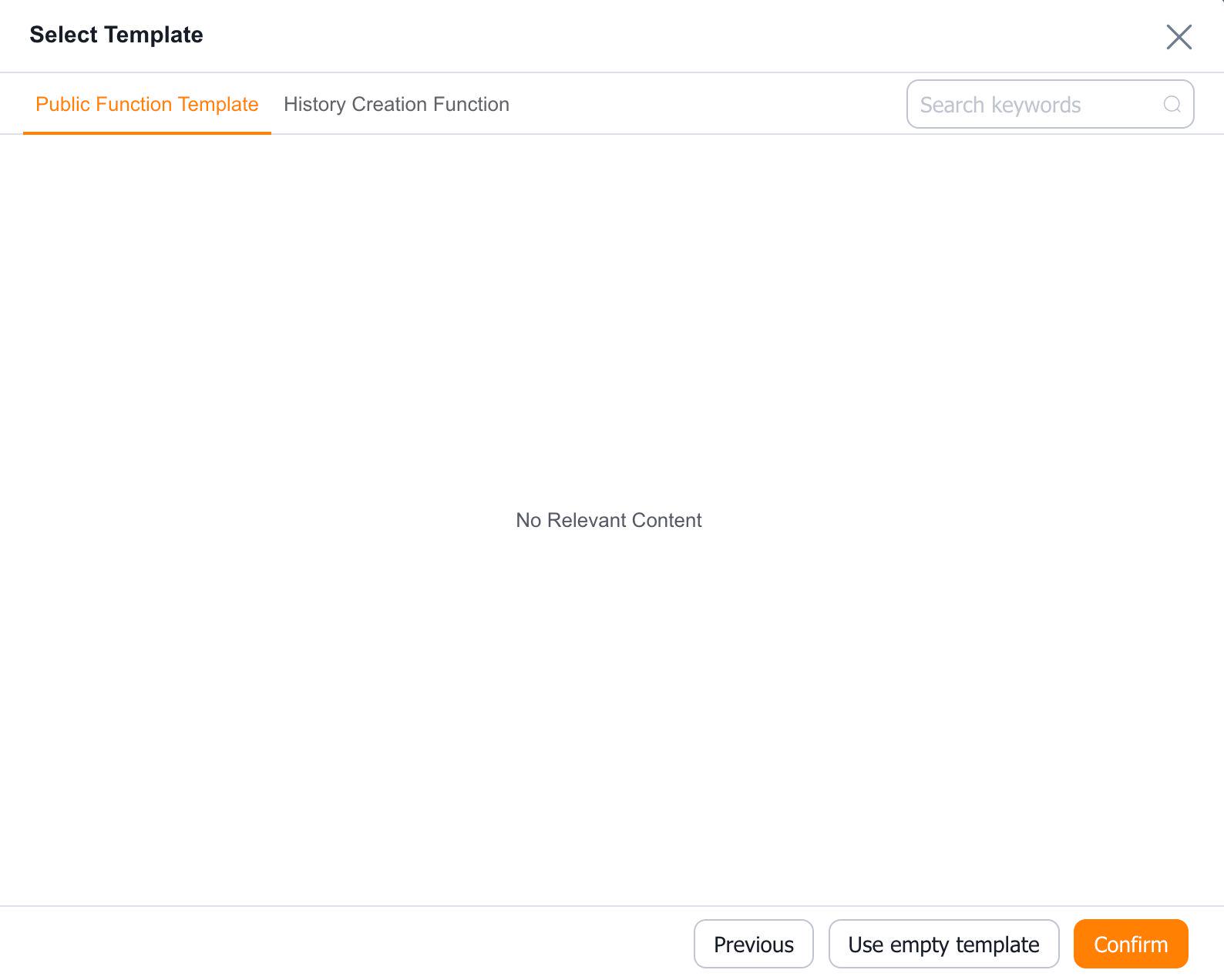
Select the empty template and click [OK] to enter the function code editing page.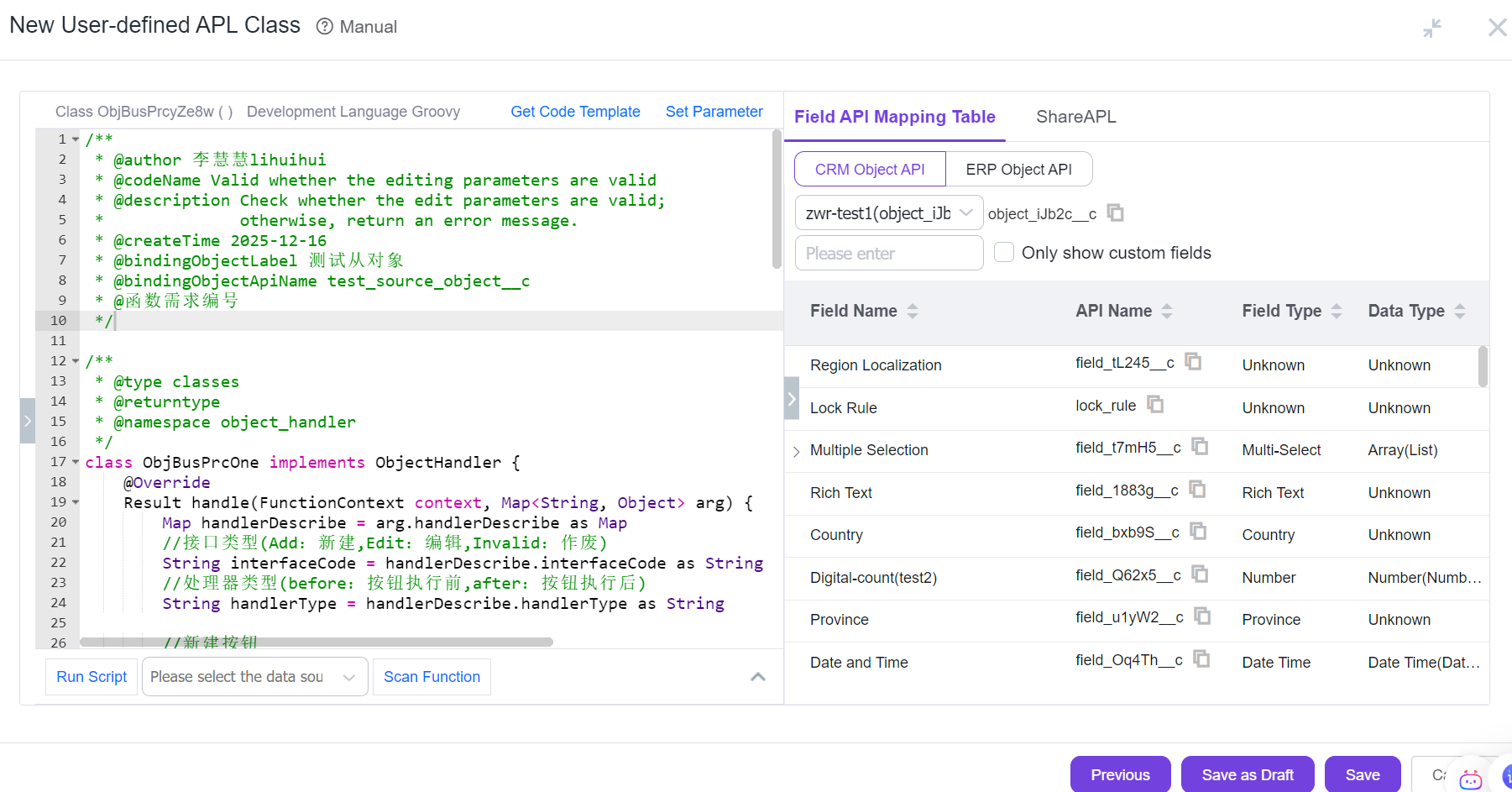
Modify the function code to implement your business logic. Click [Save], enter remarks in the pop-up dialog, then click [OK and Close] to return to the button edit page where you can see the custom business handler has been successfully added.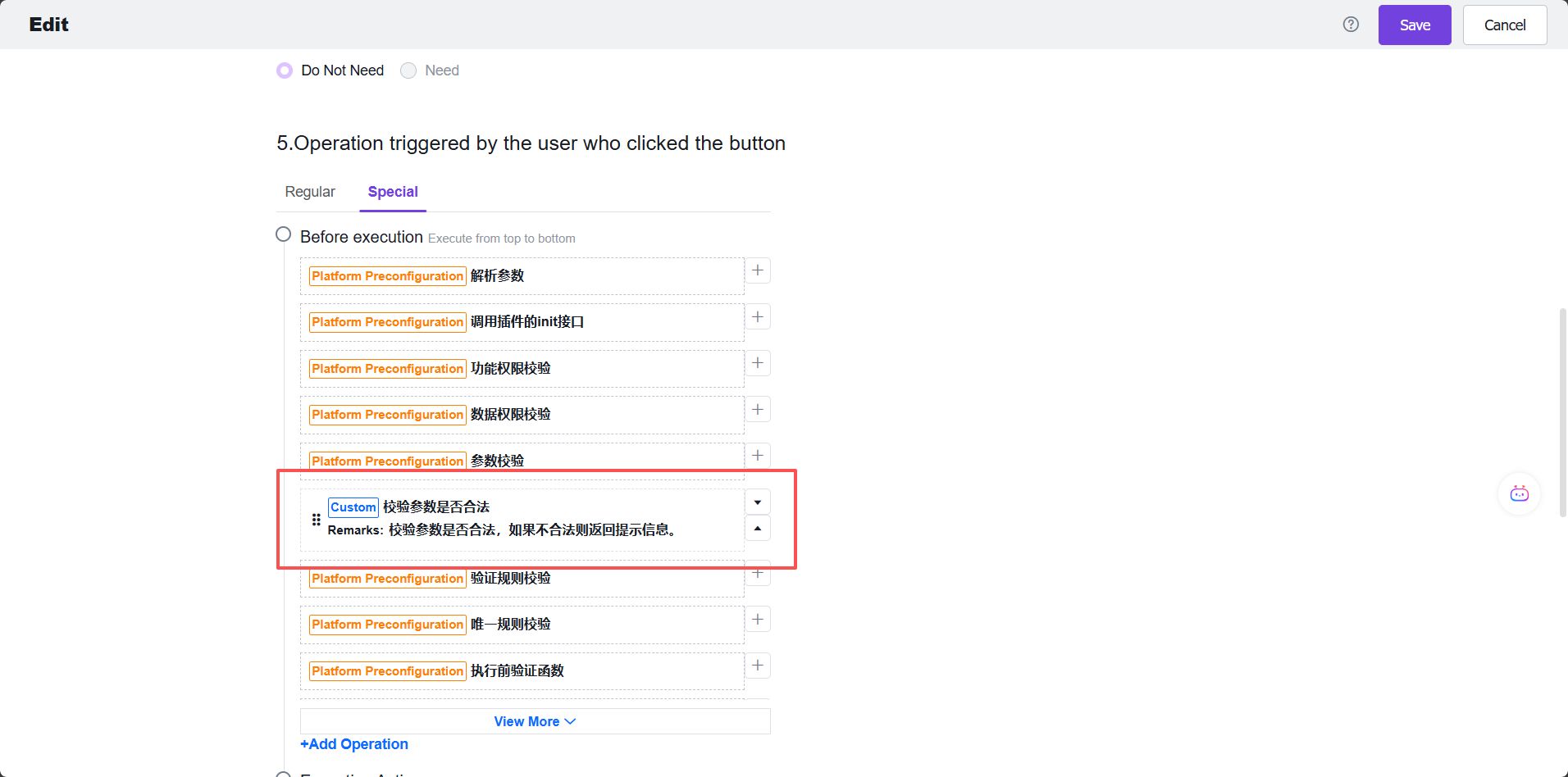
Click [Save] to return to the button list page, completing the process of adding a custom business handler for the [Edit] button.