

English
Quick Start
Quick Start
Plugin Configuration Steps
Before getting started quickly with an example, you first need to know how the plugin is configured.
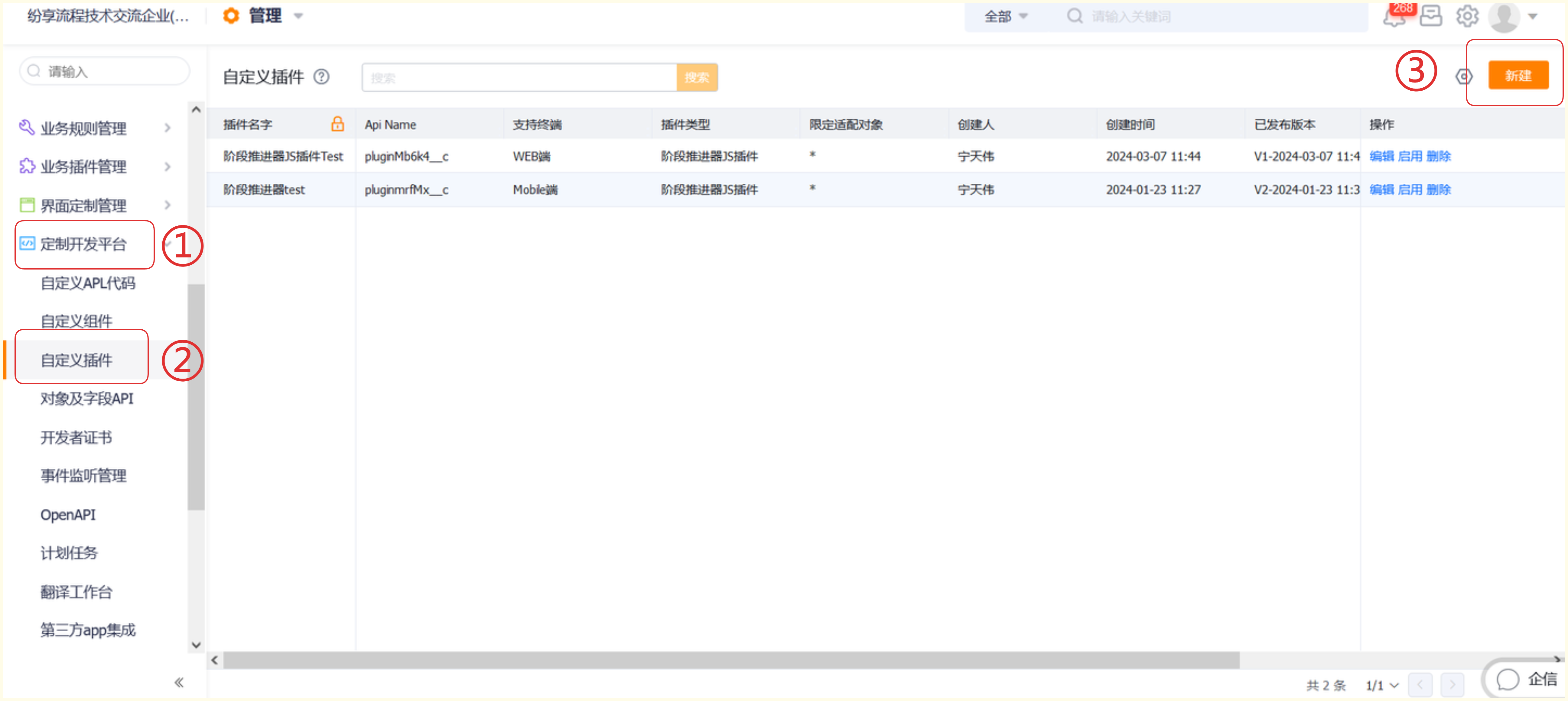
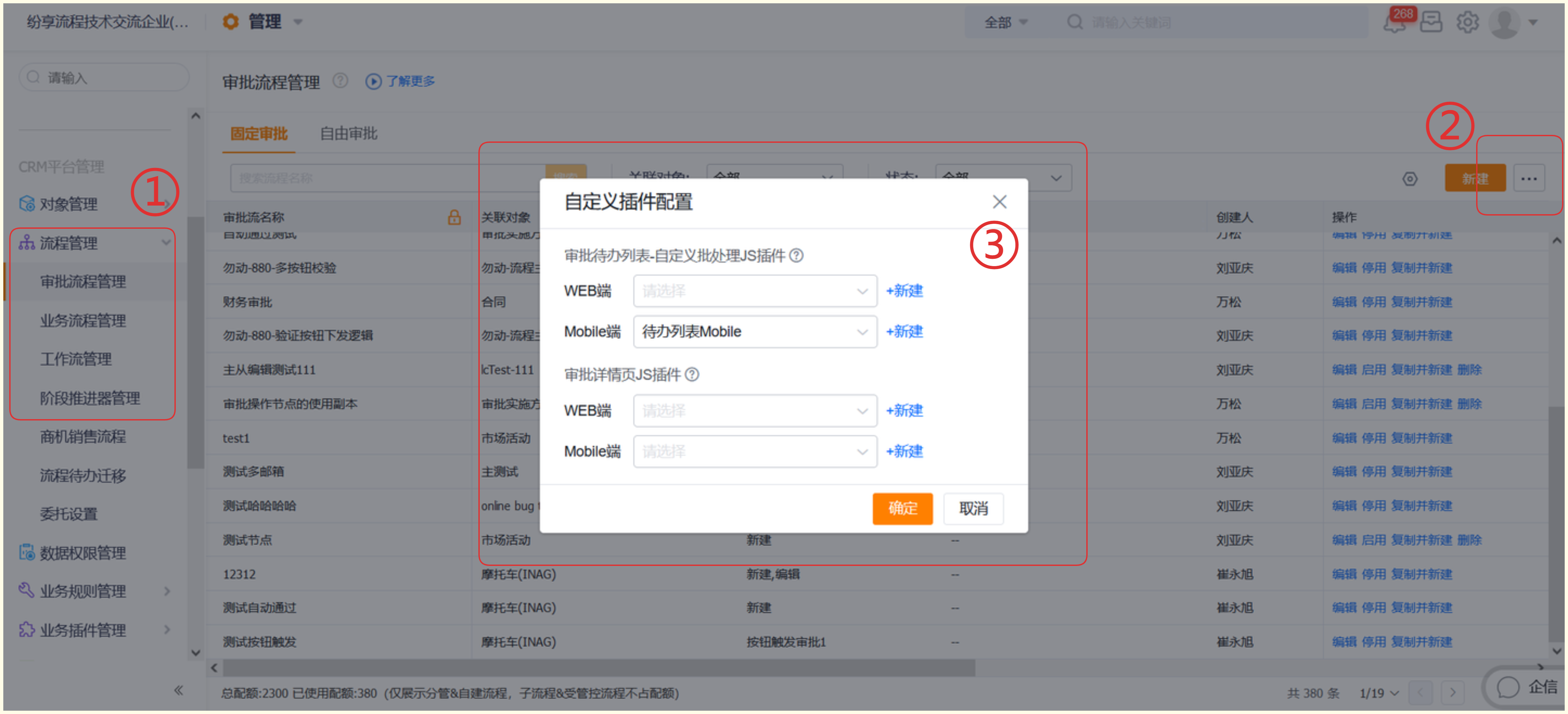
When configuring a plugin for the approval to-do list, first go to [Admin Backend] -> [Custom Development Tools], find [Custom Plugin], and click [Create New].
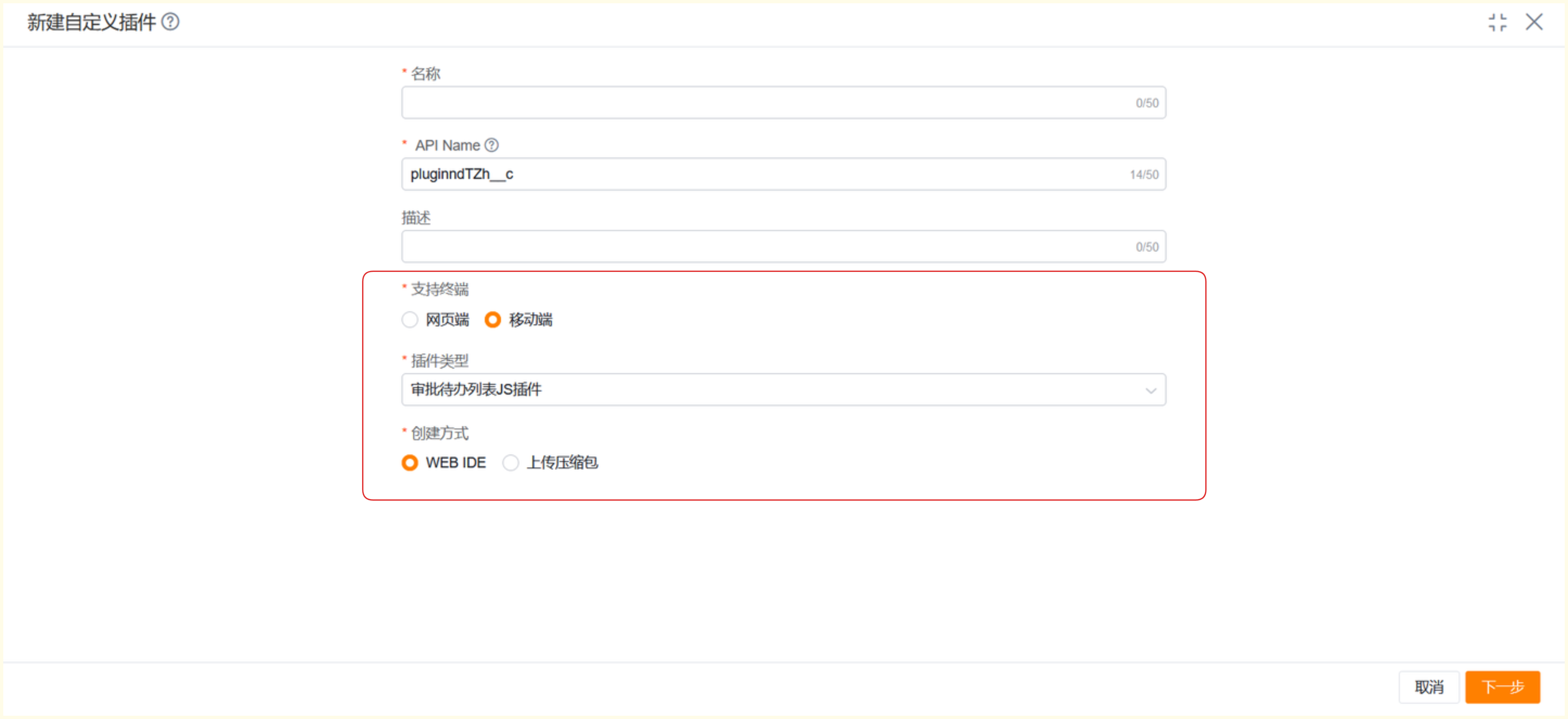
Configure the basic information of the plugin. Pay attention to selecting the supported terminal type and the plugin type you need. For example, if you want to use the Approval Detail Page JS plugin, choose that type. On mobile, besides using the WEB IDE to write plugins, you can also configure them by uploading a zip package. Here we use creating a plugin through WEB IDE as an example.
After configuring the basic information, you can choose
Public Template,History Template, orUse Empty Template. Public templates and history templates are previously created ones. You can select them and then make simple modifications according to your own needs. If you chooseUse Empty Template, you will need to write the plugin content yourself.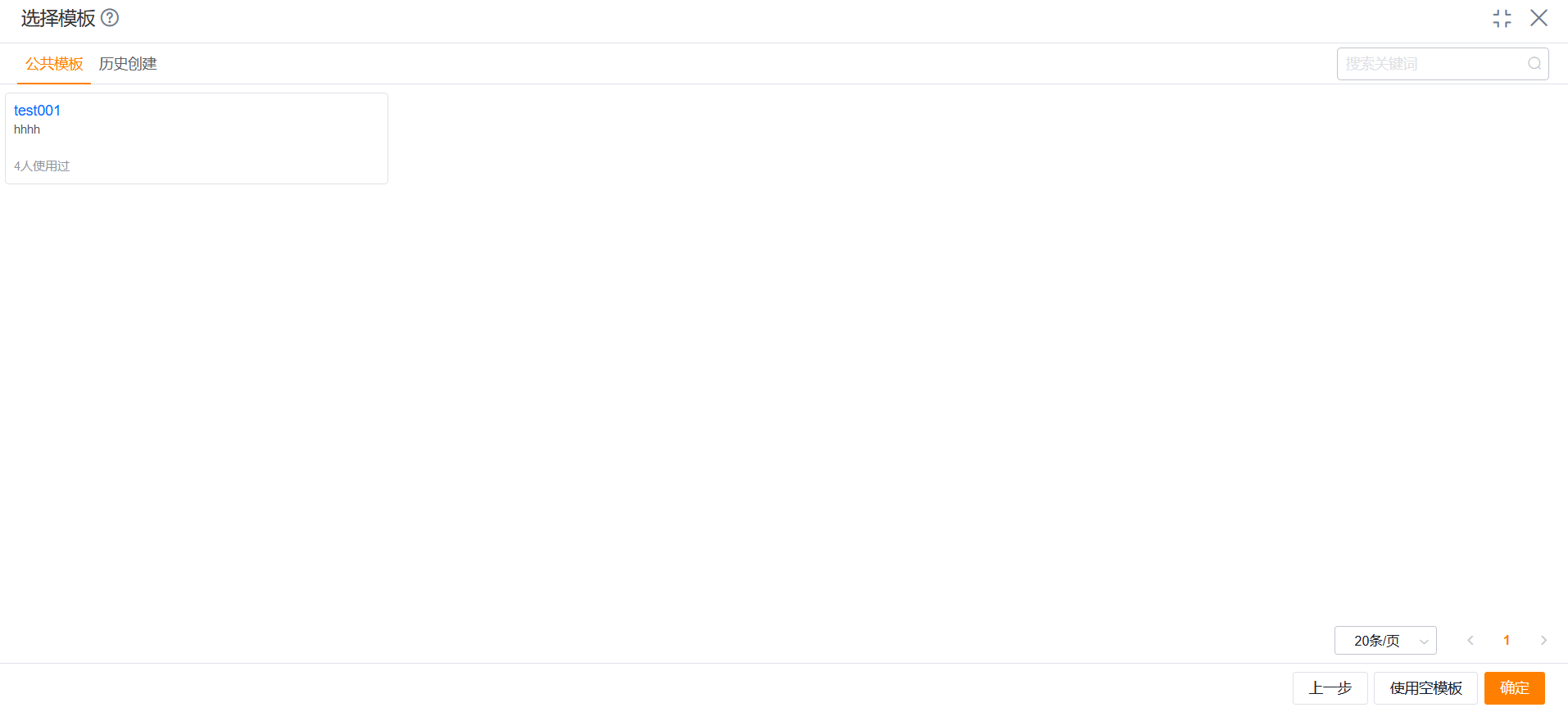
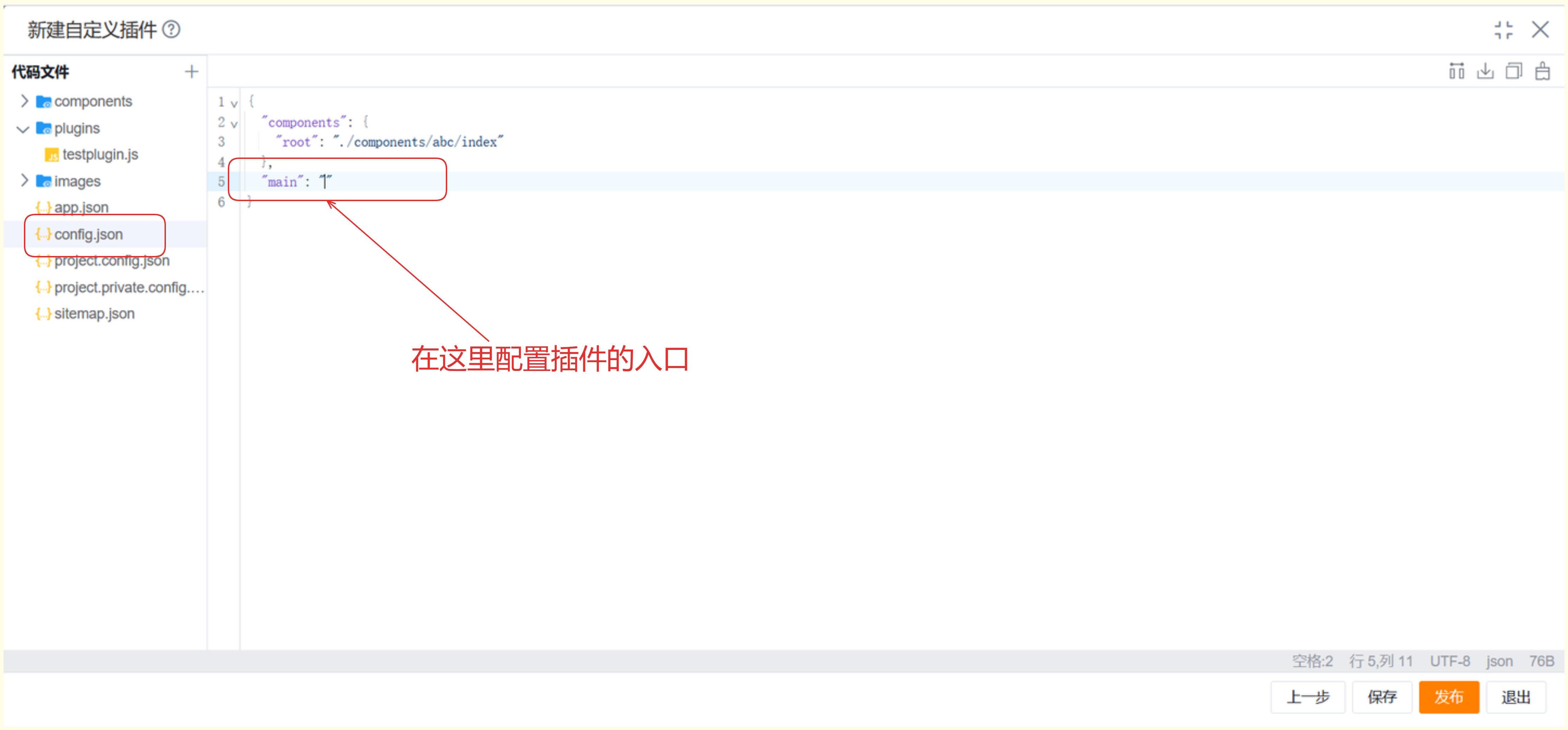
As shown below, write the plugin content and specify the plugin entry, for example:
plugins/testplugin.js. After configuration is complete, clickSaveorPublish.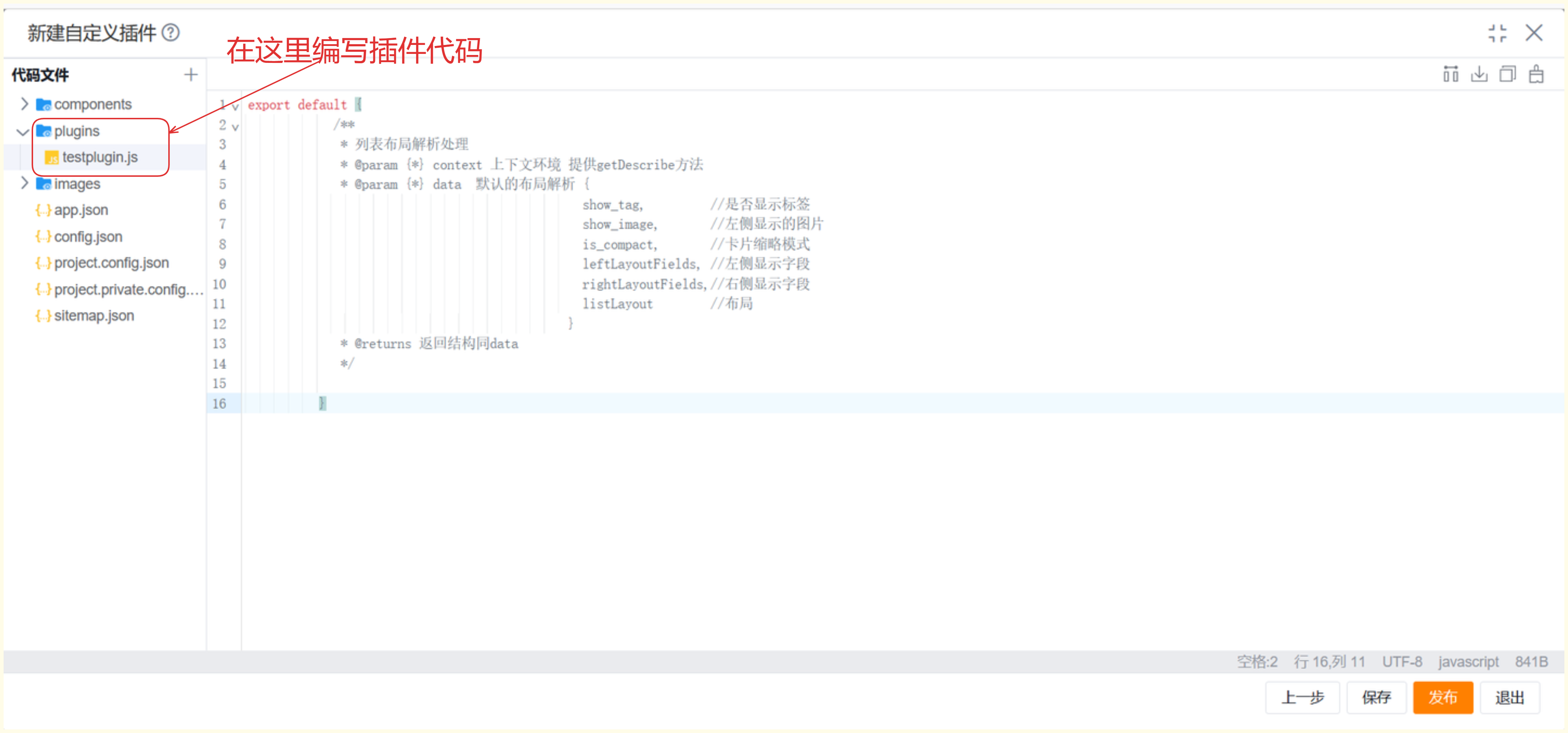
After writing is complete, go to [Advanced Configuration] in the corresponding process, find [Custom Plugin Configuration], and select the plugin you want to use.
Simple Requirement Description
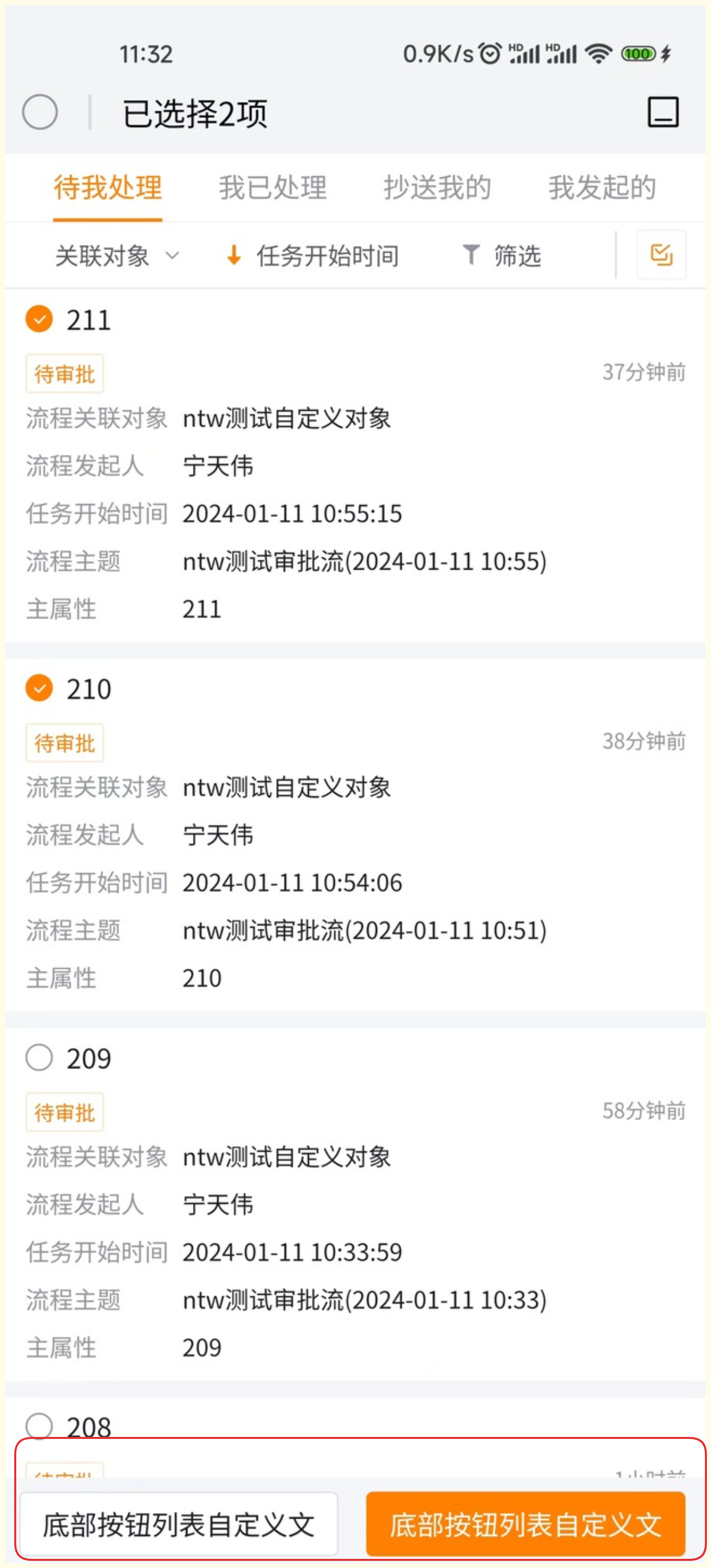
- Suppose there is a requirement to customize the button text at the bottom of the approval to-do list page, replacing it with the text we want to display. This can be implemented through the approval to-do list page JS plugin.
Code Example
module.exports = function (context, pluginService, pluginParam) {
    return {
        apply() {
            return [
                {
                    event: "flow.remind.list.batch.btn.render.before",
                    functional: function (context, options) {
                        let bottomBtnList = options && options.bottomBtnList || [];
                        bottomBtnList.forEach((a, inde) => {
                            if (a && a.text) {
                                a.text = "Custom bottom button text " + inde;
                            }
                        });
                        return Promise.resolve({
                            bottomBtnList: bottomBtnList
                        });
                    }
                }
            ]
        }
    }
}
Effect Display
Plugin Structure Explanation
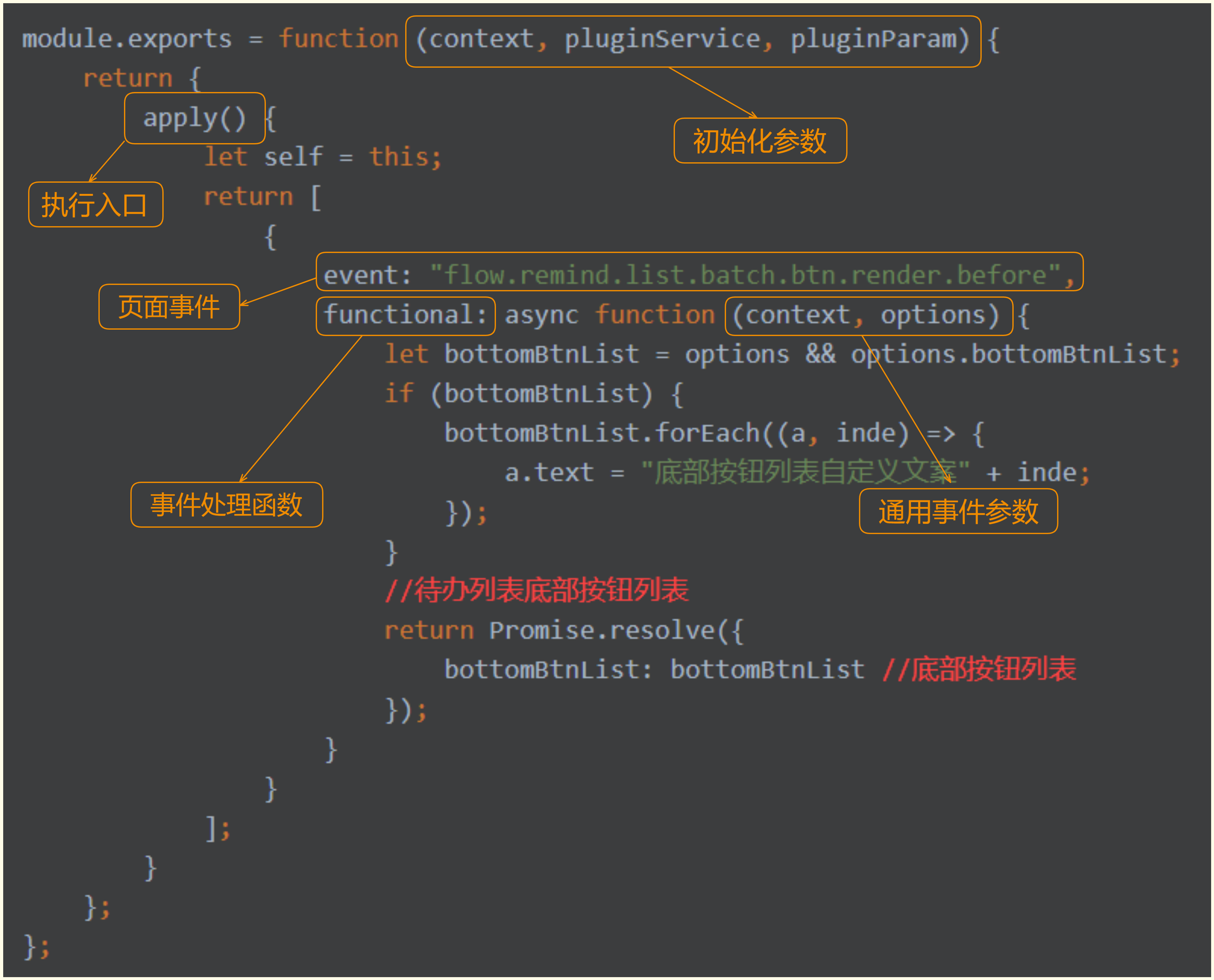
- The code mainly revolves around
eventandfunctional - event: different requirements use different events. In this example, we want to customize the text of the bottom buttons on the to-do list, so the chosen event is the one triggered before rendering the bottom button list of the approval to-do list page.
- functional: the handler function corresponding to the current event, where the actual feature is implemented. Here we need the text of the bottom buttons in the to-do list, so we iterate through
bottomBtnList, modify thetextproperty of each button, and finally return the modifiedbottomBtnList.